> For the complete documentation index, see [llms.txt](https://help.eventool.com/llms.txt). Markdown versions of documentation pages are available by appending `.md` to page URLs; this page is available as [Markdown](https://help.eventool.com/en/meeting-planner/how-to-request-accept-or-decline-meetings-from-the-app.md).
# How to request, accept or decline meetings from the app
The meeting functionality within the Eventool app allows attendees to manage their appointments quickly and easily. In this article, we explain everything you can do from your mobile device: how to request a meeting, how to accept or decline a request, and what type of notifications you'll receive during the process.
***
### Request a meeting from the app
#### Step 1: Access the meetings section
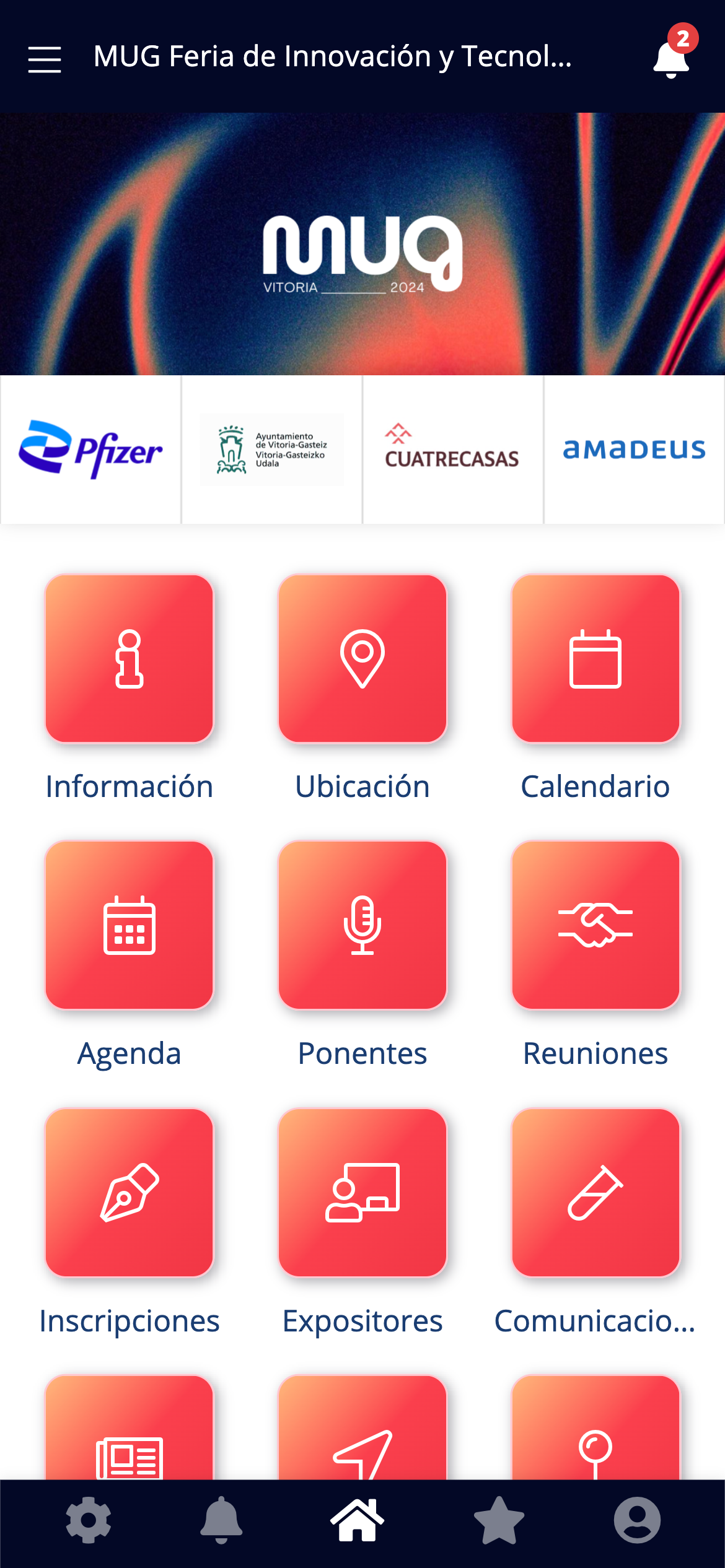
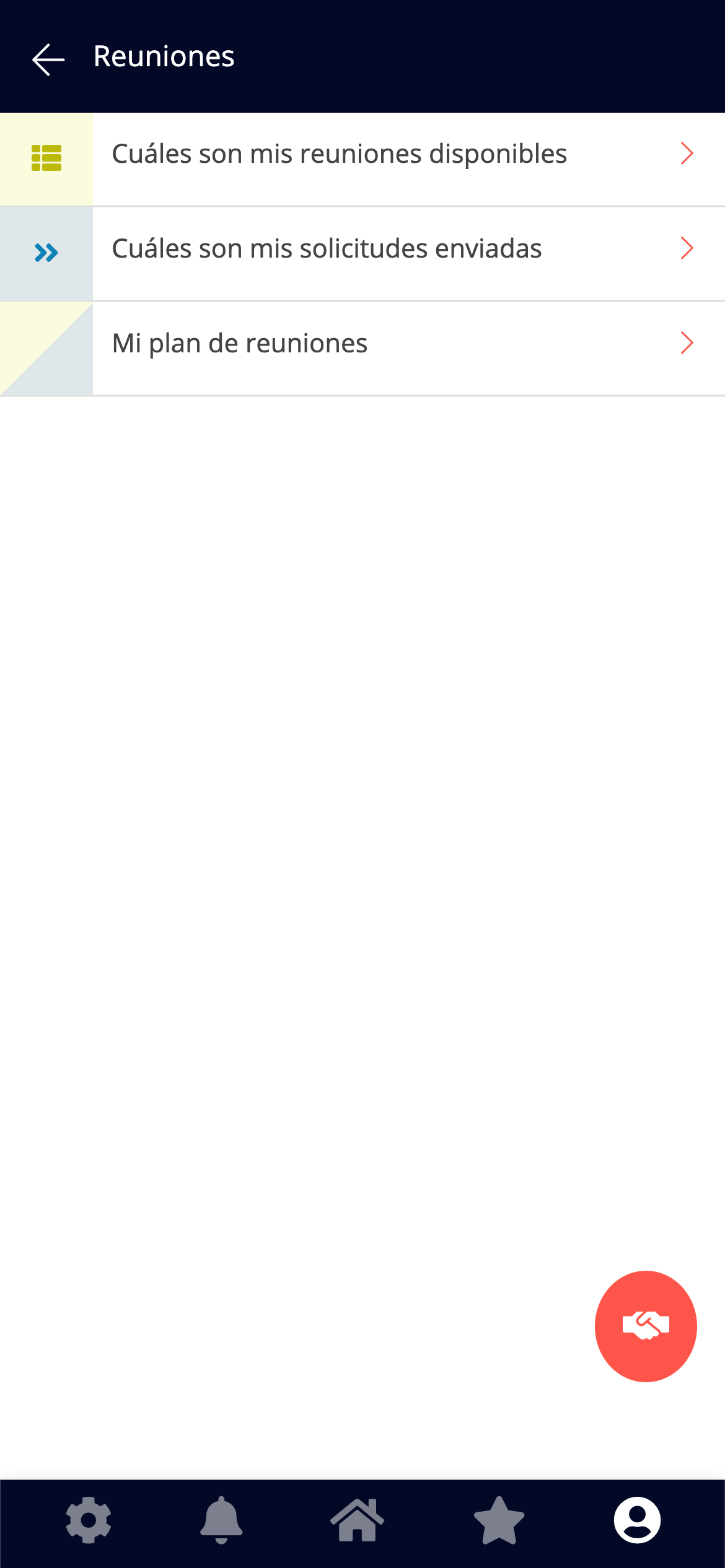
From the app's main menu, go to the **Meetings** section.
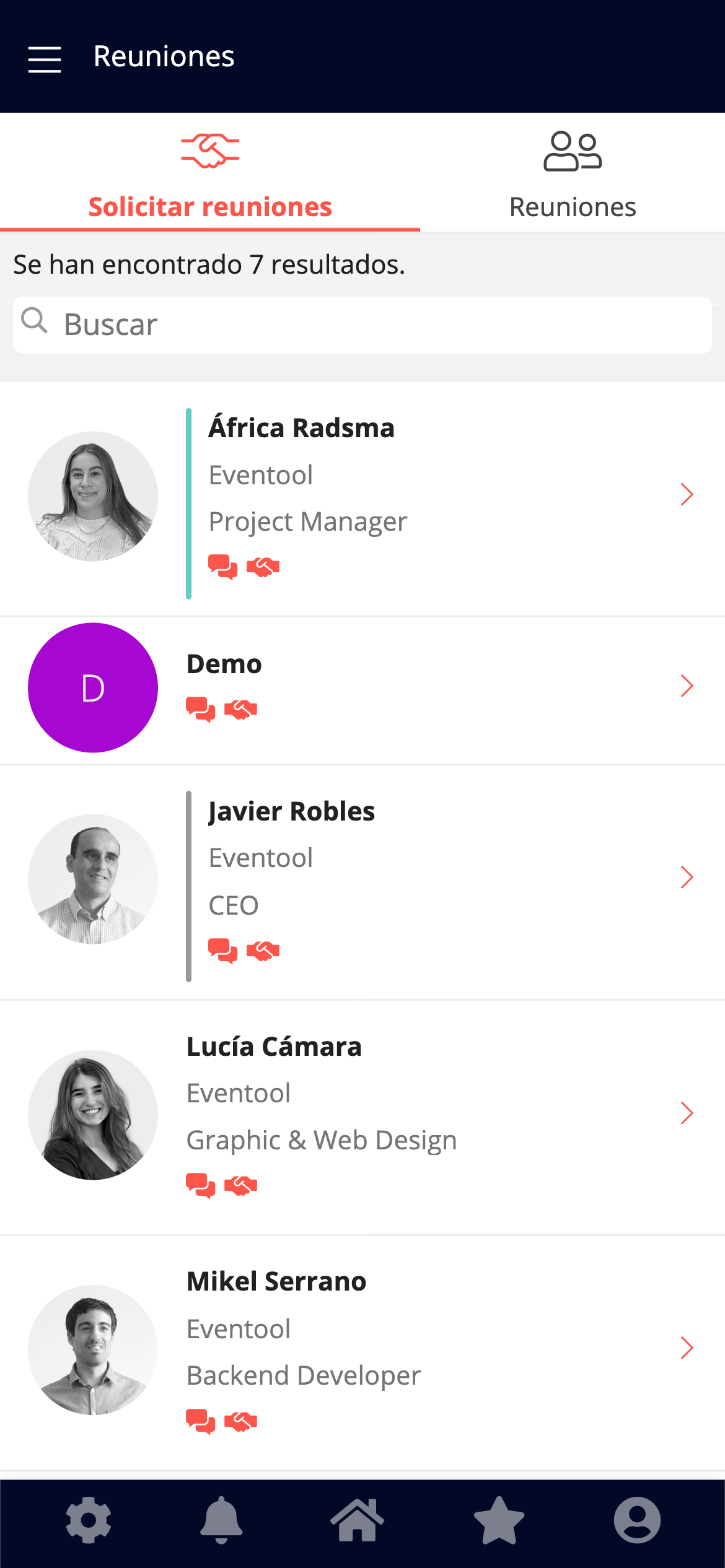
You'll see a list of attendees who are available to receive meetings. These users have the "Receive meetings" option enabled and will appear with their photo, name, company or position, among other information.
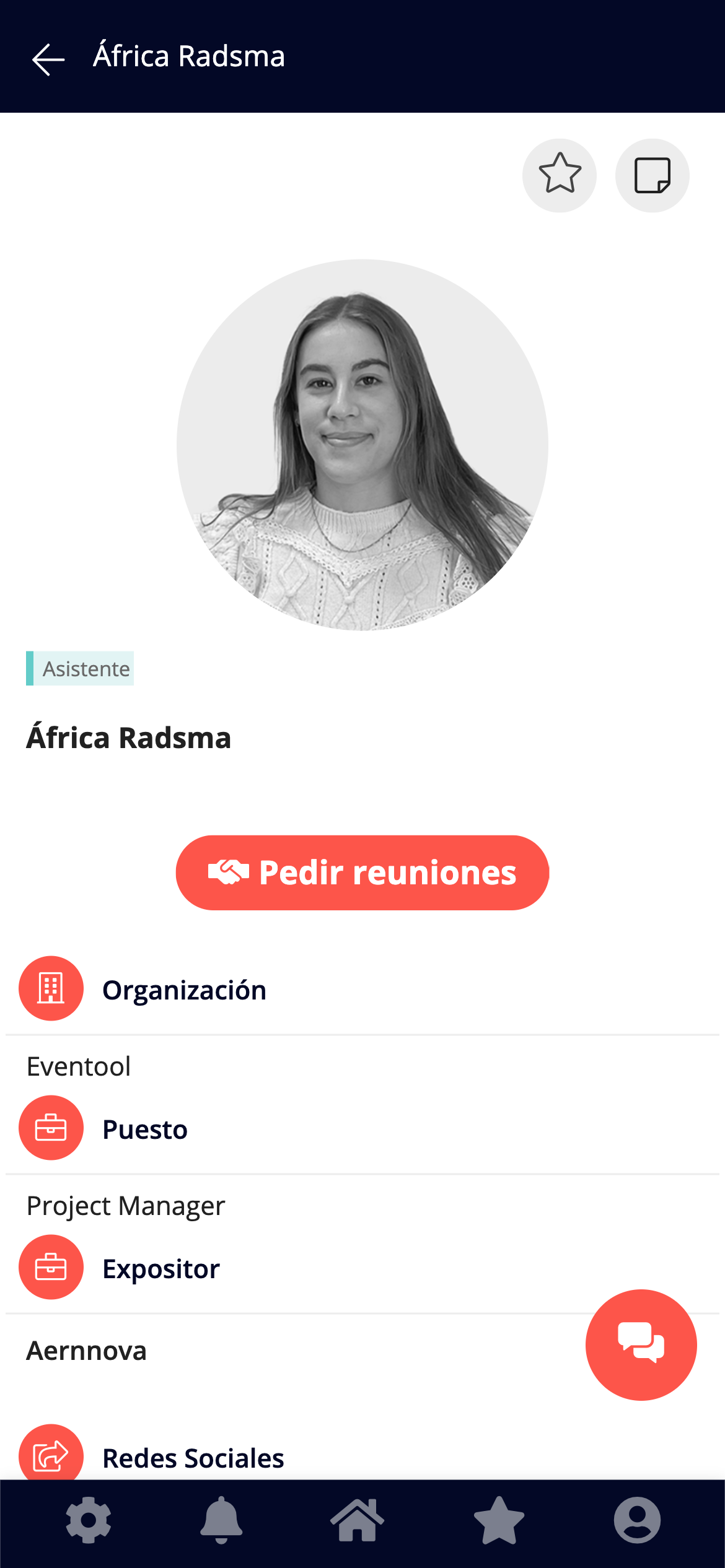
👉 Click on the name of the assistant you want to meet with.
#### Step 2: Select the schedule
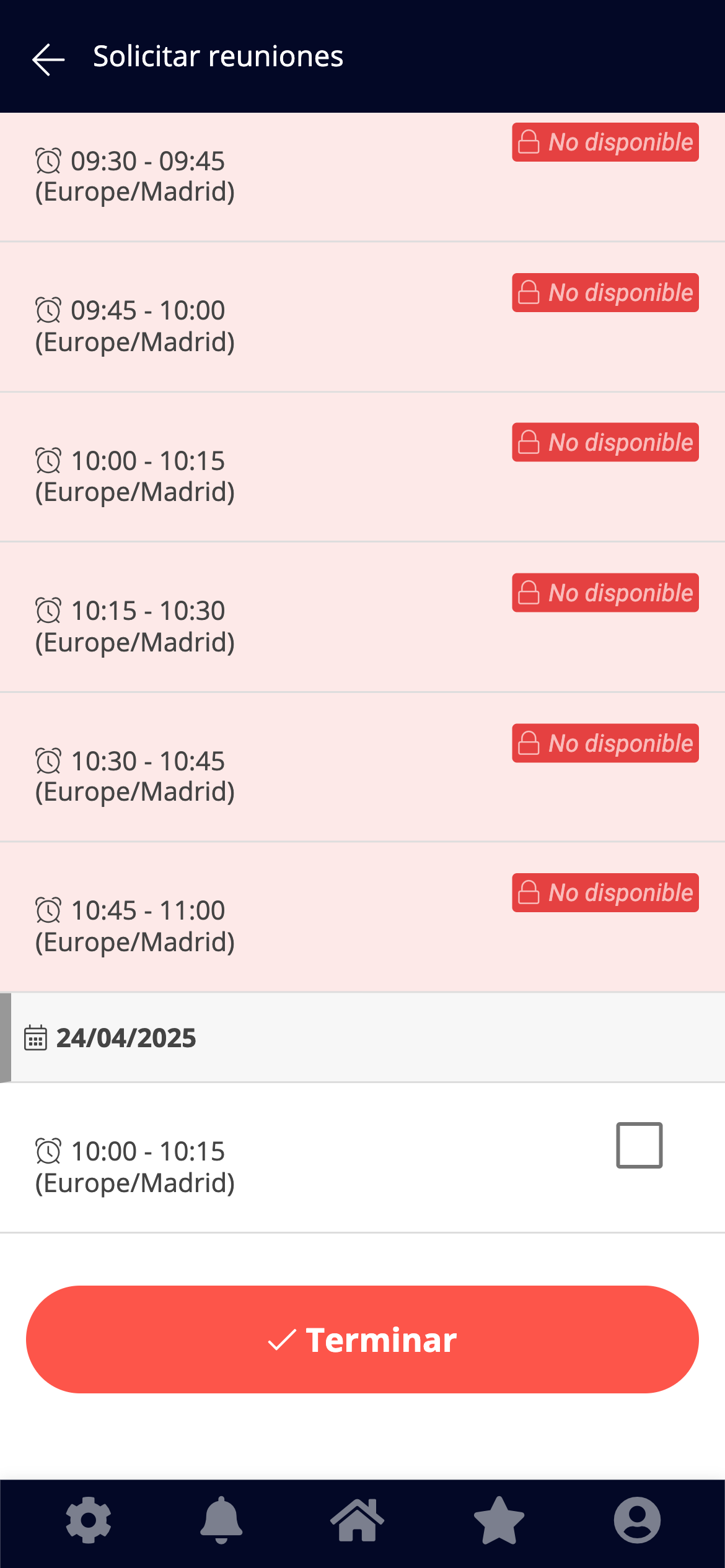
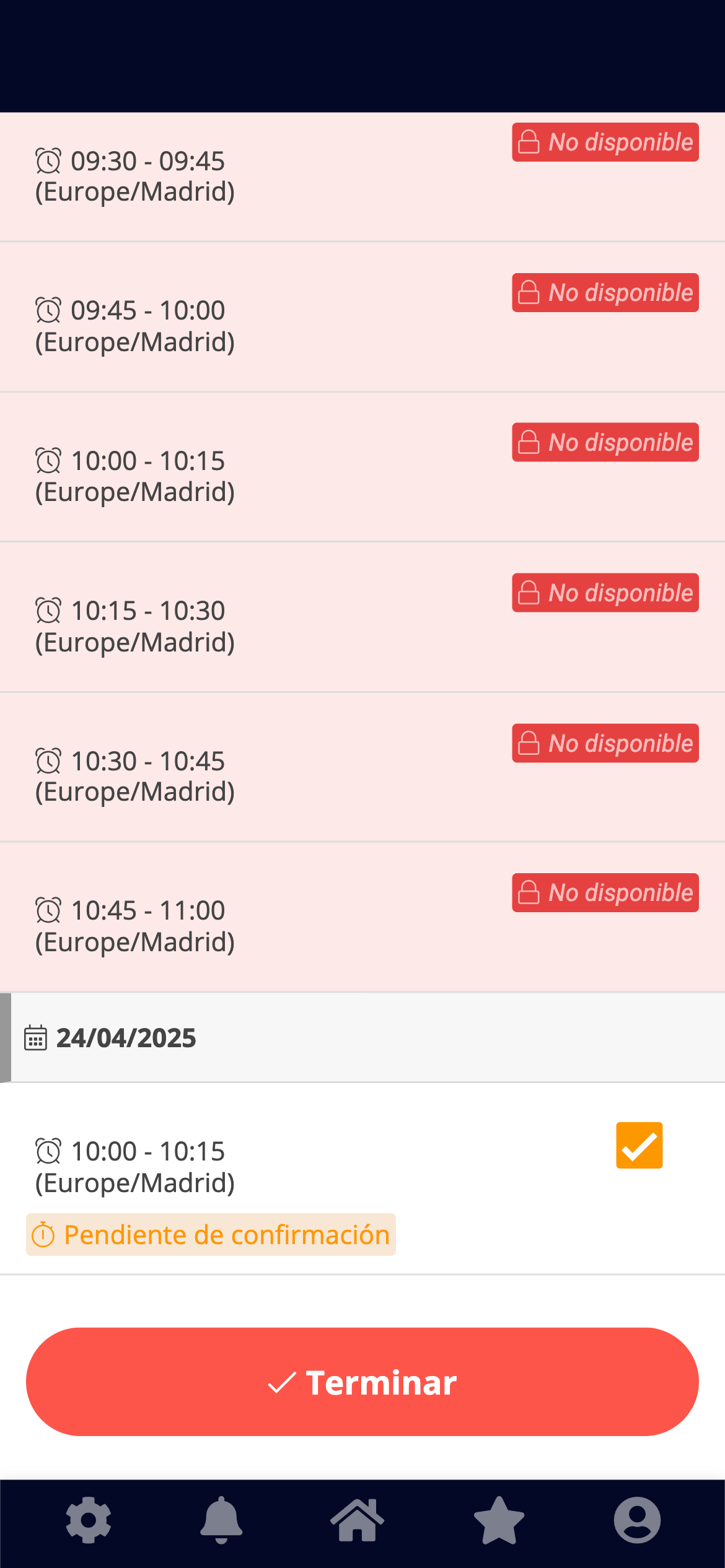
A list of available time slots will be displayed. Each slot may appear with different statuses:
* 🔴 *Not available*
* 🟢 *Accepted* (if you already have a confirmed meeting at that time)
* 🟡 *Pending confirmation* (if you have already submitted a request)
* ⬜ *Empty box* (to select a new schedule)
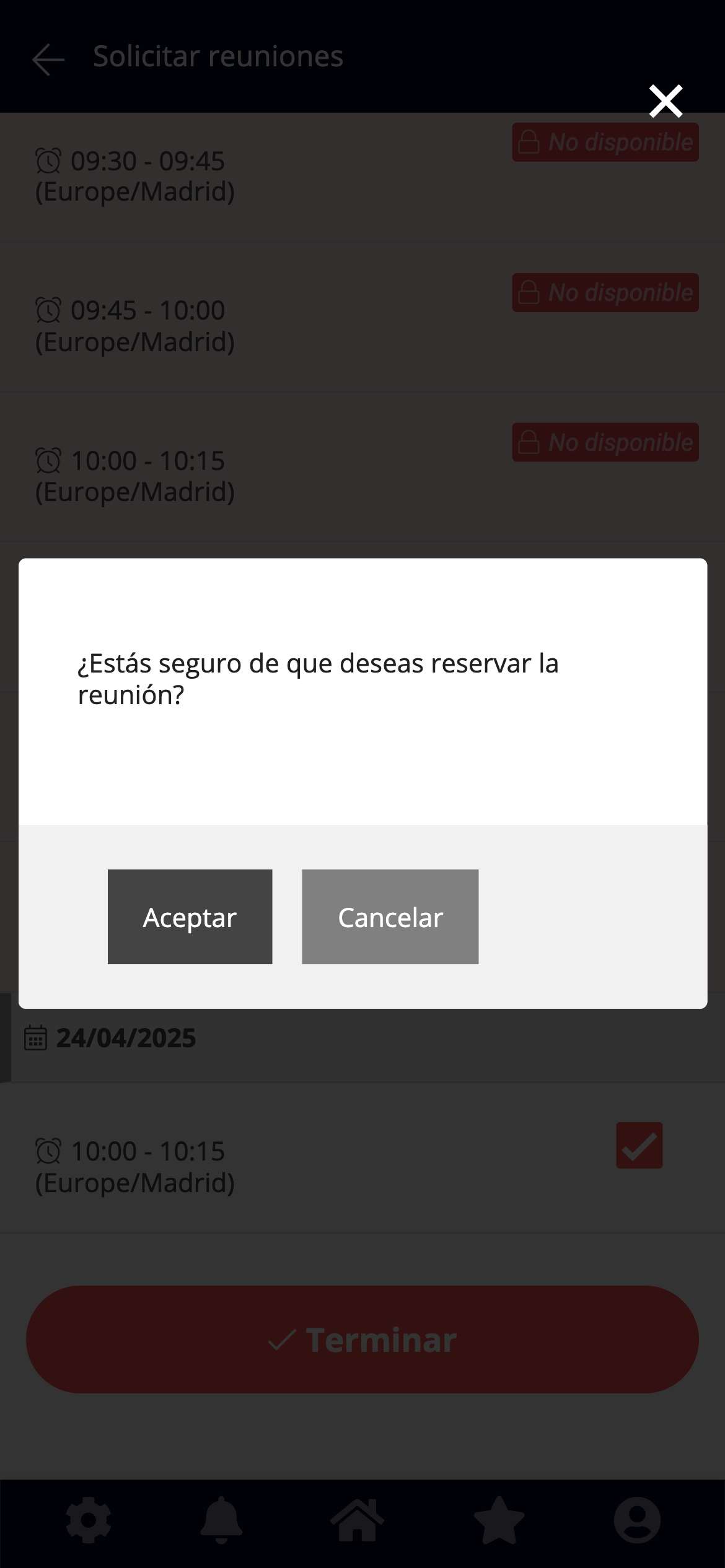
Select the time and click **Finish.** The system will ask for confirmation before submitting the request.
⏳ The meeting will remain in a *Pending Confirmation* state until the other attendee accepts or declines it.
***
### What happens if several people request the same time slot?
An attendee may receive **multiple requests** for the same time slot, but can **only accept one**. When they accept a meeting, all other requests within that time frame will be **automatically rejected**.
{% hint style="info" %}
⚙️ *Optional functionality*: The system can be configured to allow only **one request per time slot**. In that case, once someone requests a meeting, that time slot is temporarily blocked for everyone else.
{% endhint %}
***
### Notifications and emails
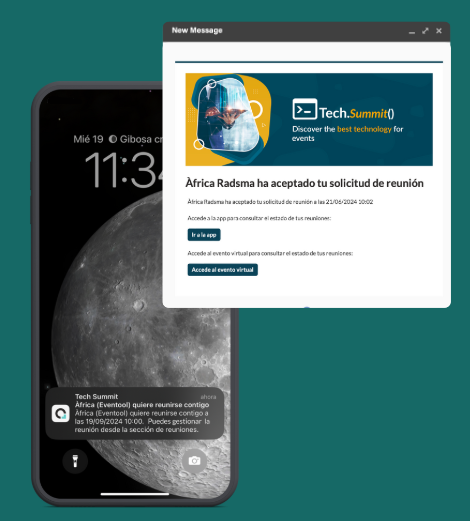
Every action related to a meeting generates **automatic notifications**:
| Acción | Receptor | Notificación push | Correo electrónico |
| ---------------- | ------------------- | ----------------- | ------------------ |
| Application sent | Receiving Assistant | ✅ | ✅ |
| Application sent | Issuing Assistant | ✅ | ✅ |
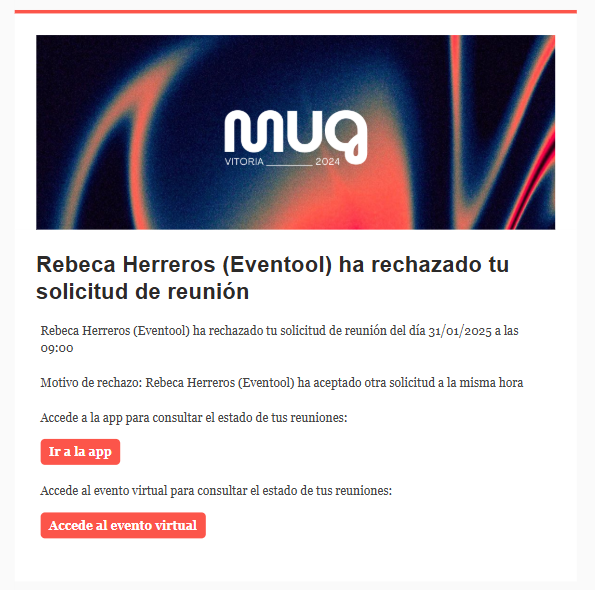
| Application sent | Issuing Assistant | ✅ (with motive) | ✅ (with motive) |
The emails include shortcuts to both the app and the virtual event so you can manage your appointments from any device.
***
### Accept a meeting
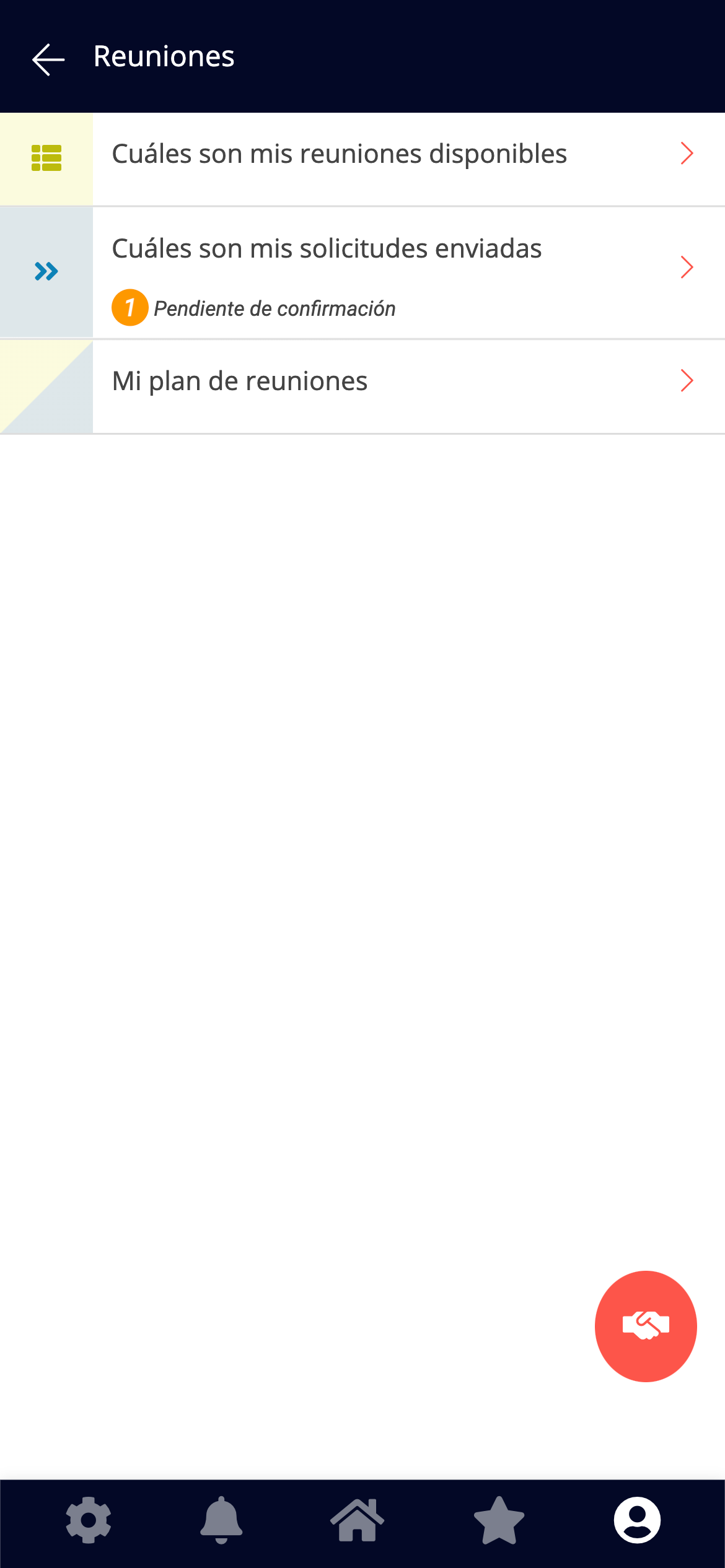
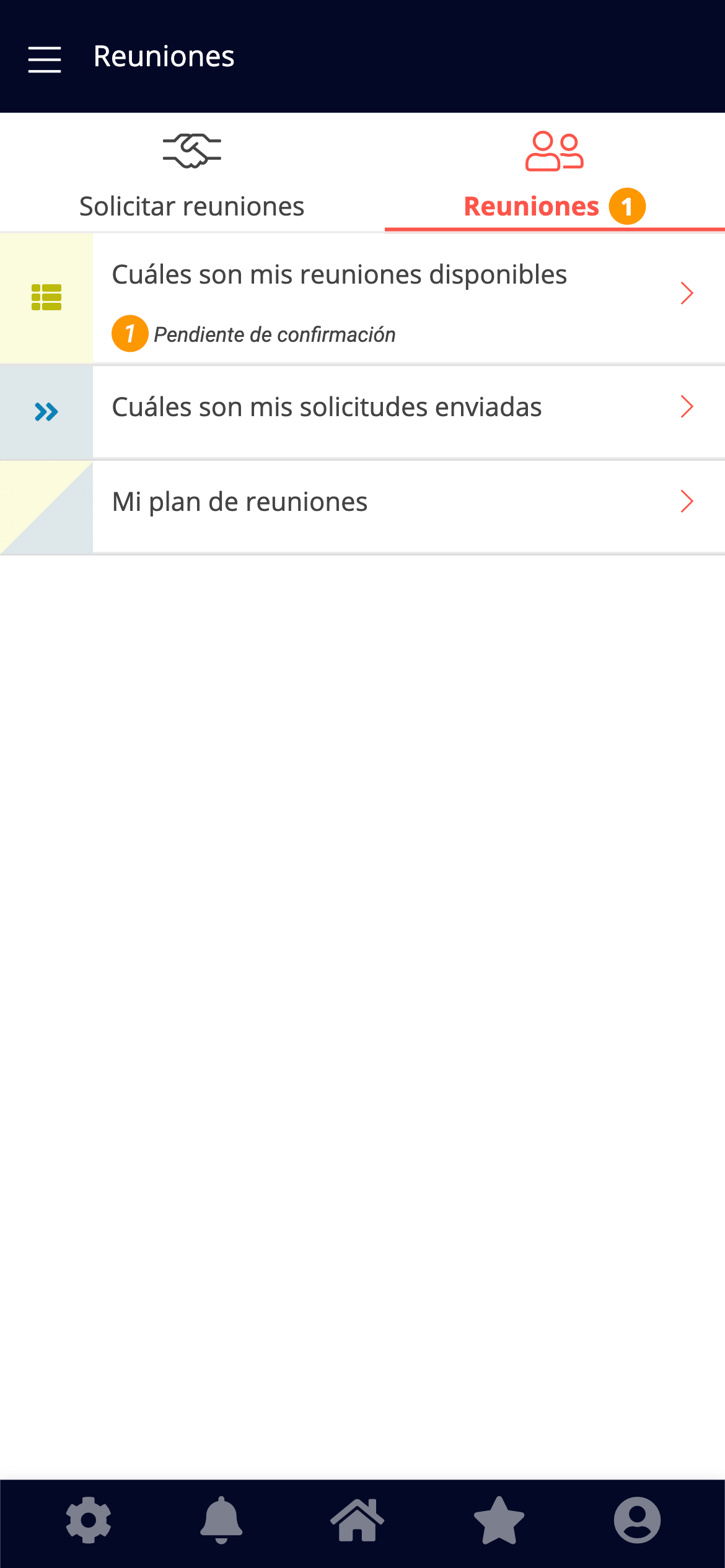
1. Access **My Available Meetings**.
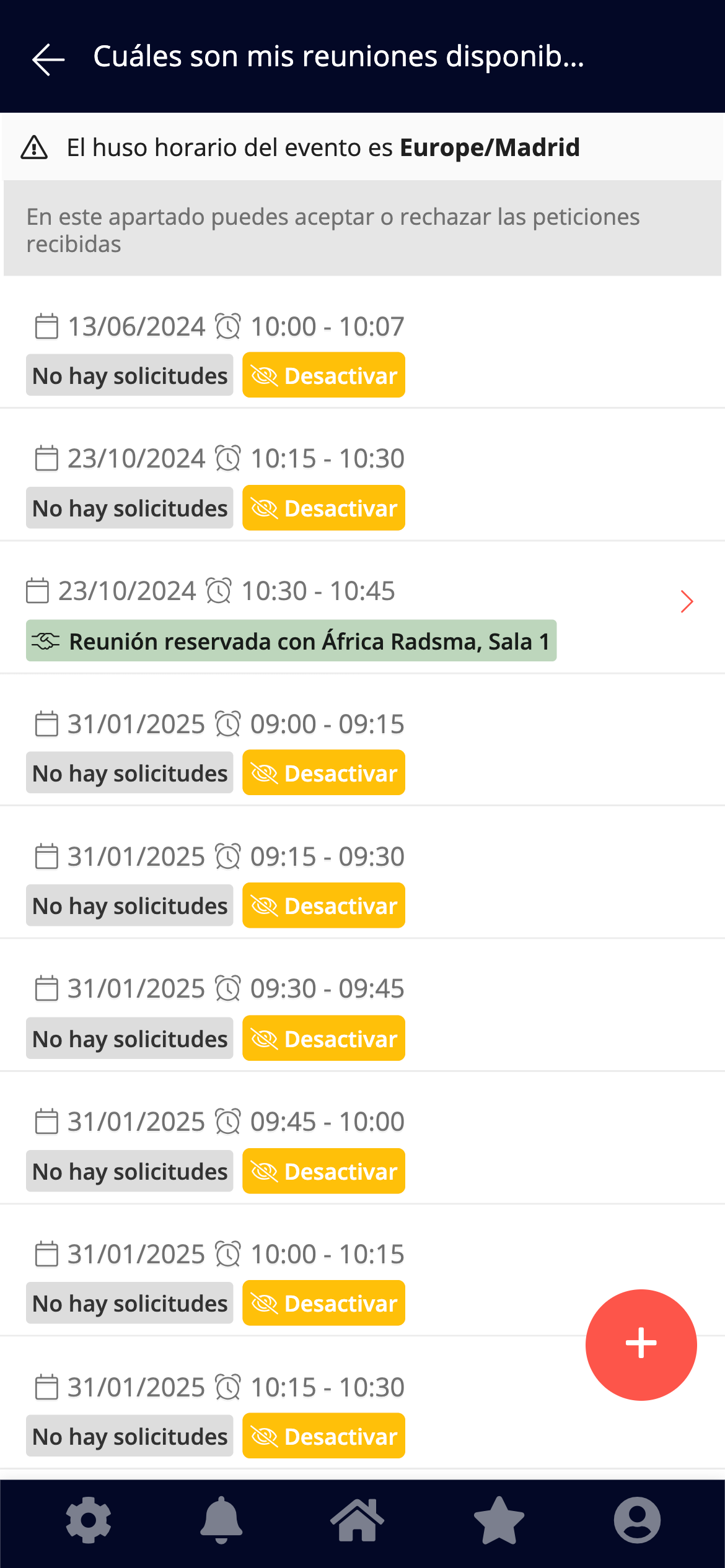
2. You will see the list of schedules with pending requests.
3. Click on the schedule to see the details.
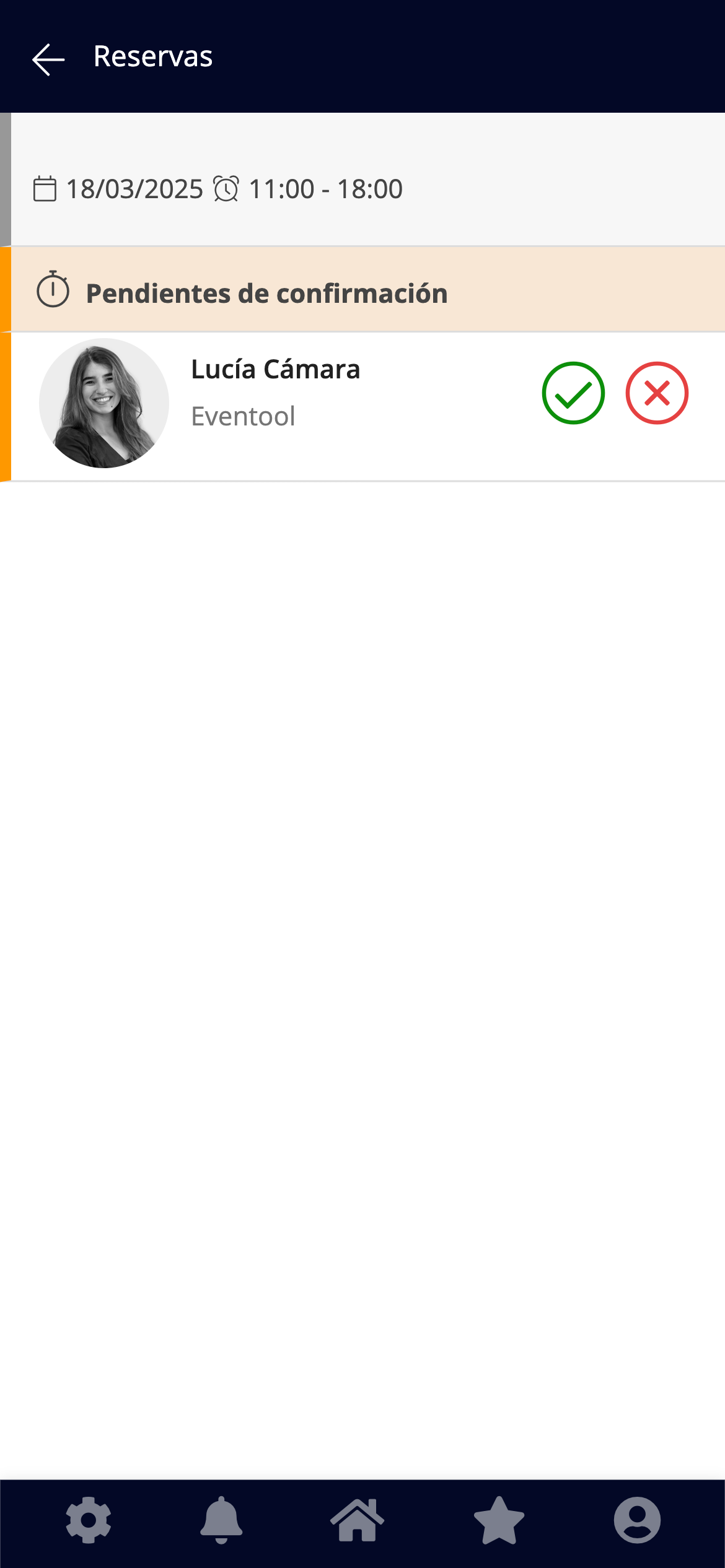
4. The request will appear with the ✅ button to accept it.
5. Confirm your decision in the pop-up window.
📩 The attendee who requested the meeting will receive a confirmation email and their schedule will be automatically updated.
***
### Rejecting a meeting
1. From the same list of pending requests, press the button ❌.
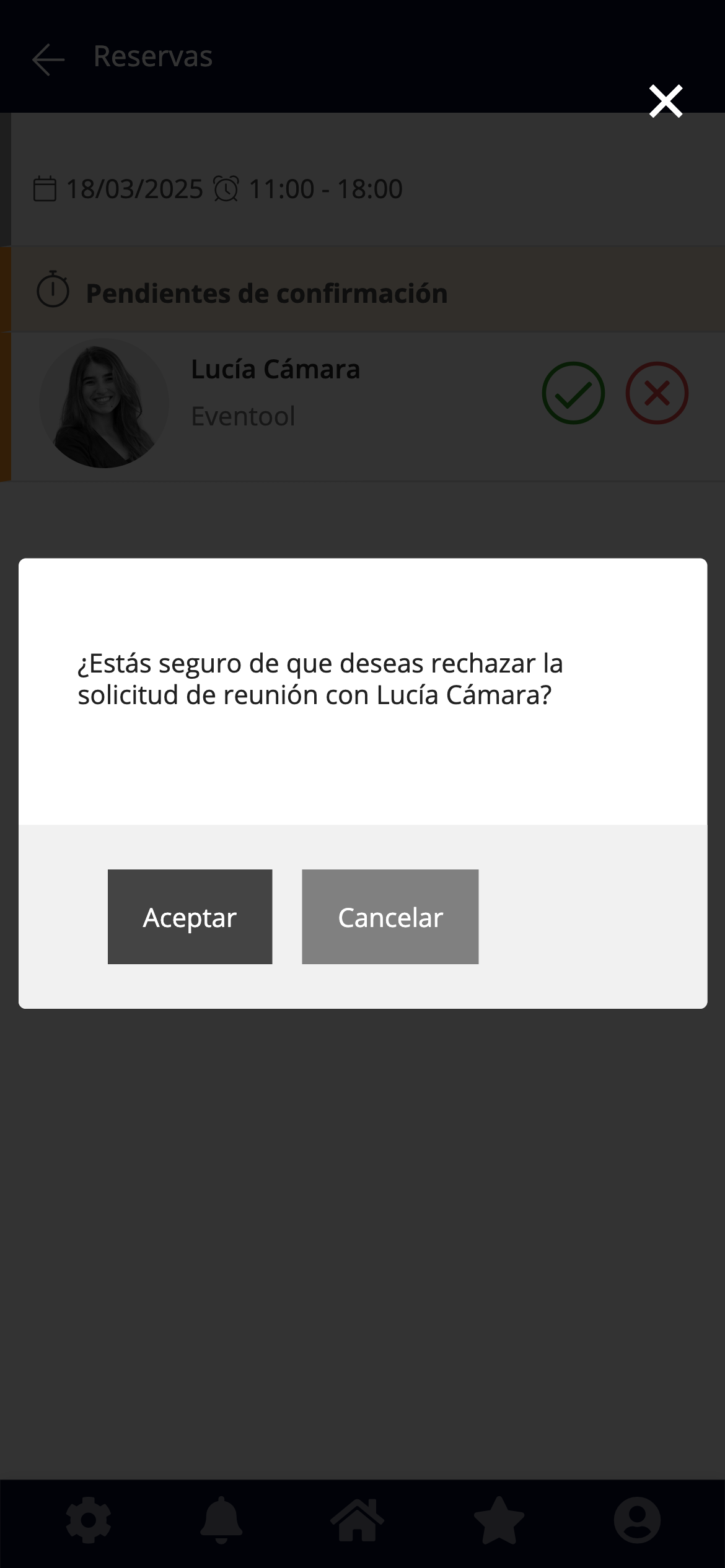
2. Confirm the action in the pop-up window.
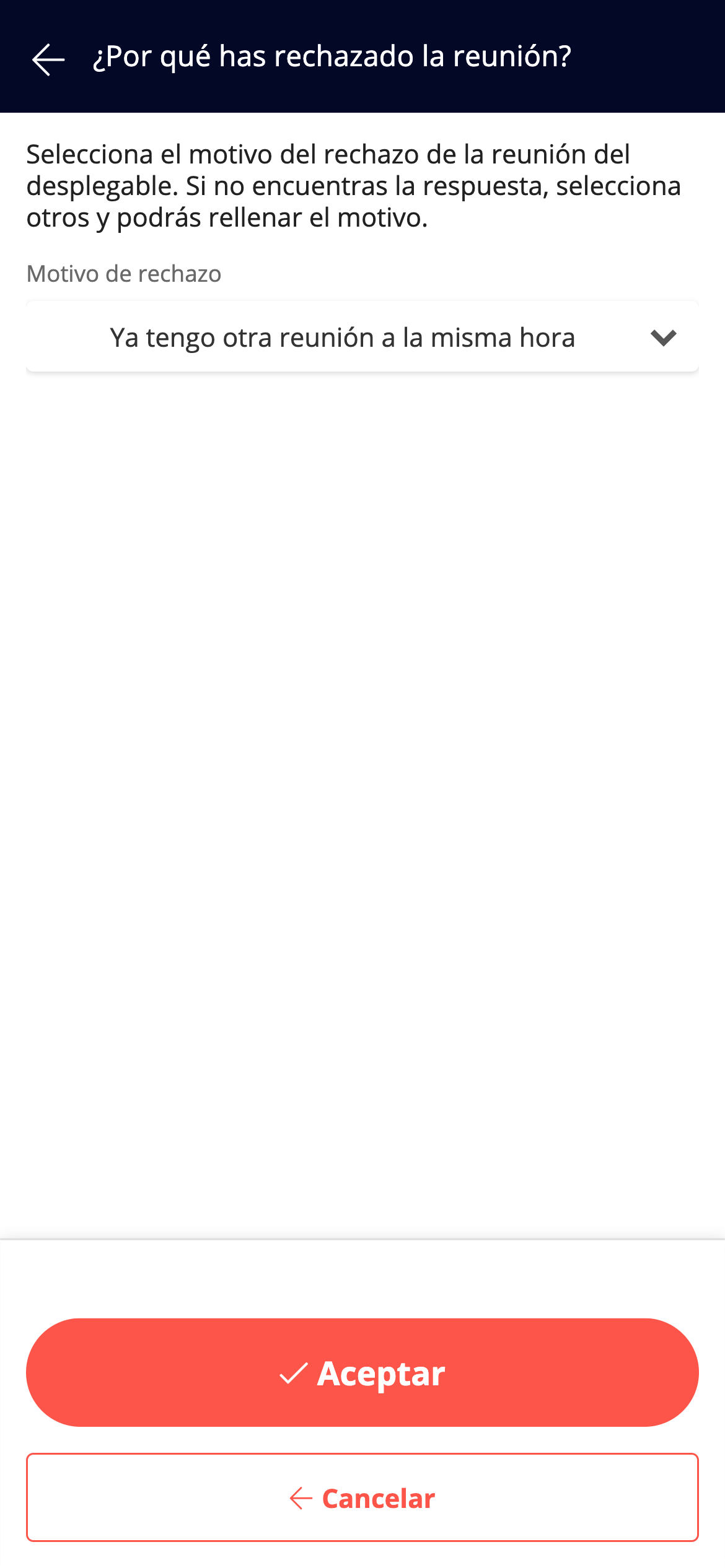
3. Please state the **reason for the rejection**. You can choose between:
* I already have another meeting at the same time
* I cannot attend the meeting
* I'm not interested
* Other (allows you to add custom text)
4. Press **OK** to finish the process.
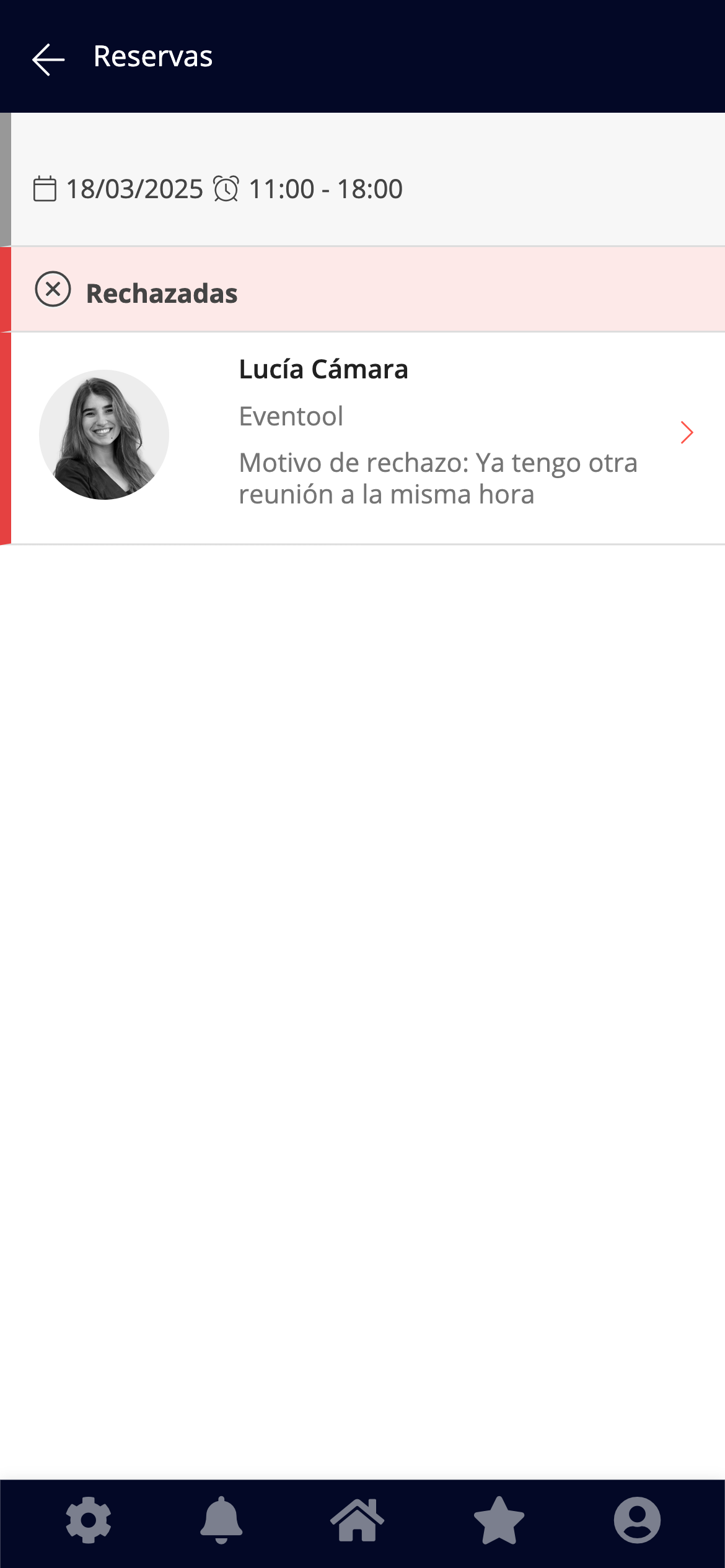
The attendee who requested the meeting will receive:
* A push notification
* An email detailing the **reason for the rejection**
***
### View and manage your schedule
You can track everything at any time using the app:
* View your active or deactivated time slots.
* Check your confirmed meetings.
* Review submitted and pending applications.
* Disable slots if you don't want to receive any more requests.
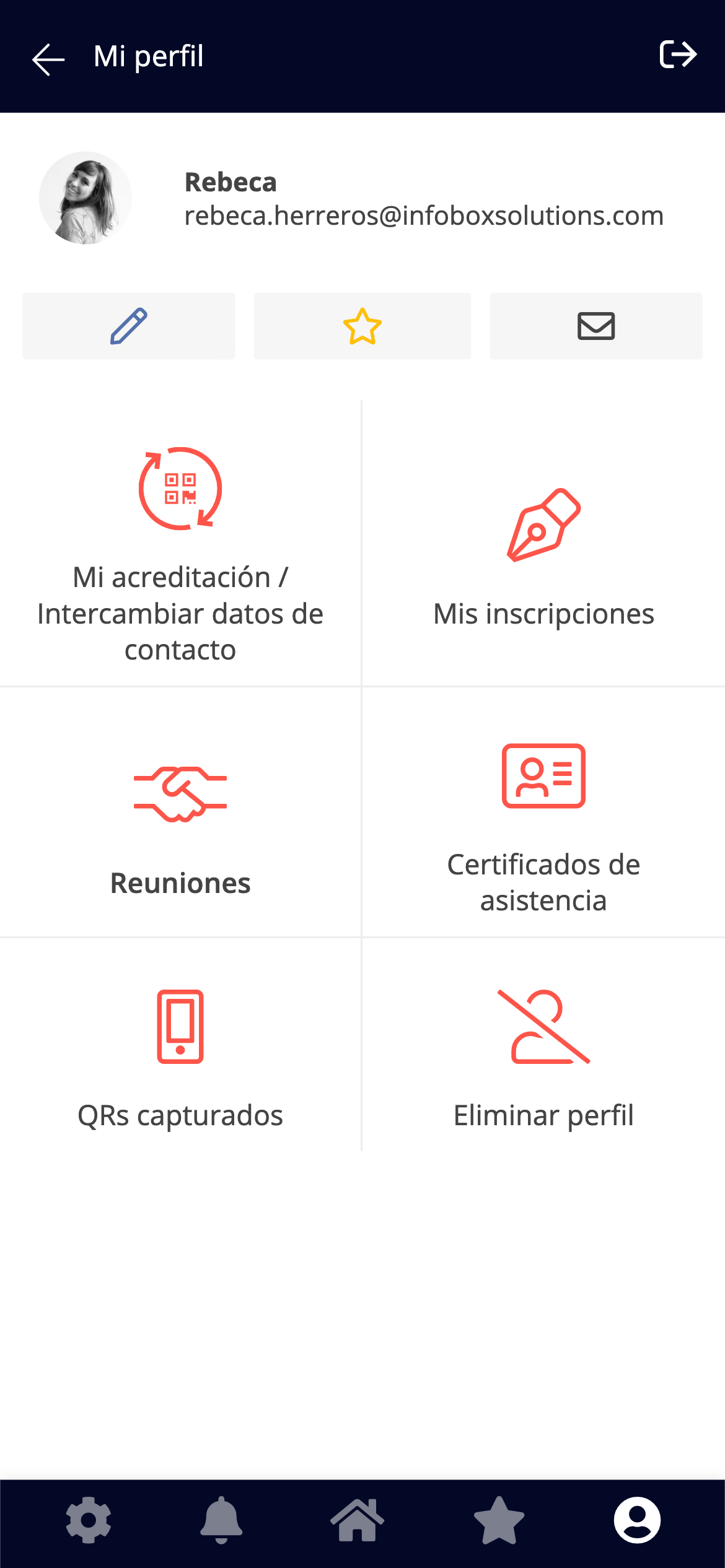
You can access all of this from the **Meetings** section of your profile.