> For the complete documentation index, see [llms.txt](https://help.eventool.com/llms.txt). Markdown versions of documentation pages are available by appending `.md` to page URLs; this page is available as [Markdown](https://help.eventool.com/en/general-content/networking/attendees/how-to-review-registrations-meetings-and-attendee-activity.md).
# How to review registrations, meetings, and attendee activity
> From each attendee's profile, you can have complete control over their participation in the event.
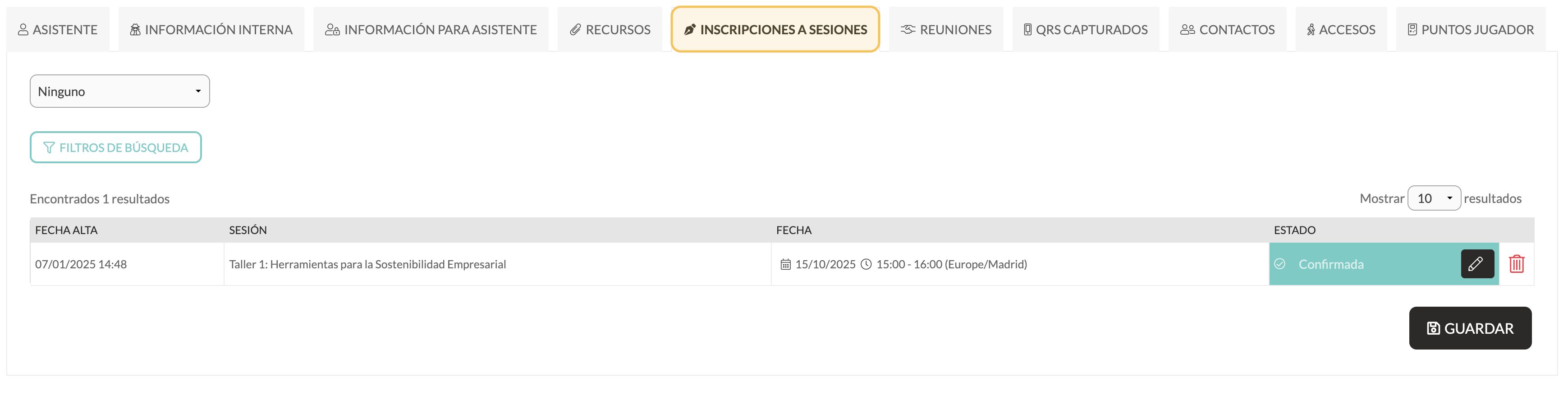
## Registration for sessions
From the **Session Registrations** tab, you can:
* See which sessions you have registered for.
* Allow them to sign up (and set a limit).
* Edit or delete registrations.
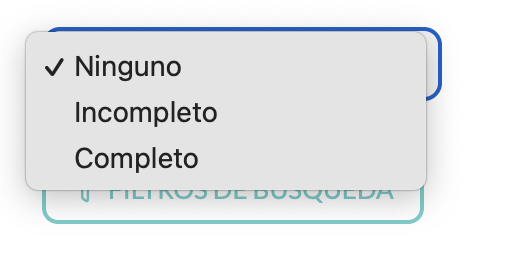
* Filter by status: *complete or incomplete.*
🔎 *The status ‘Incomplete’ indicates that the assistant started a form but did not finish it.*
***
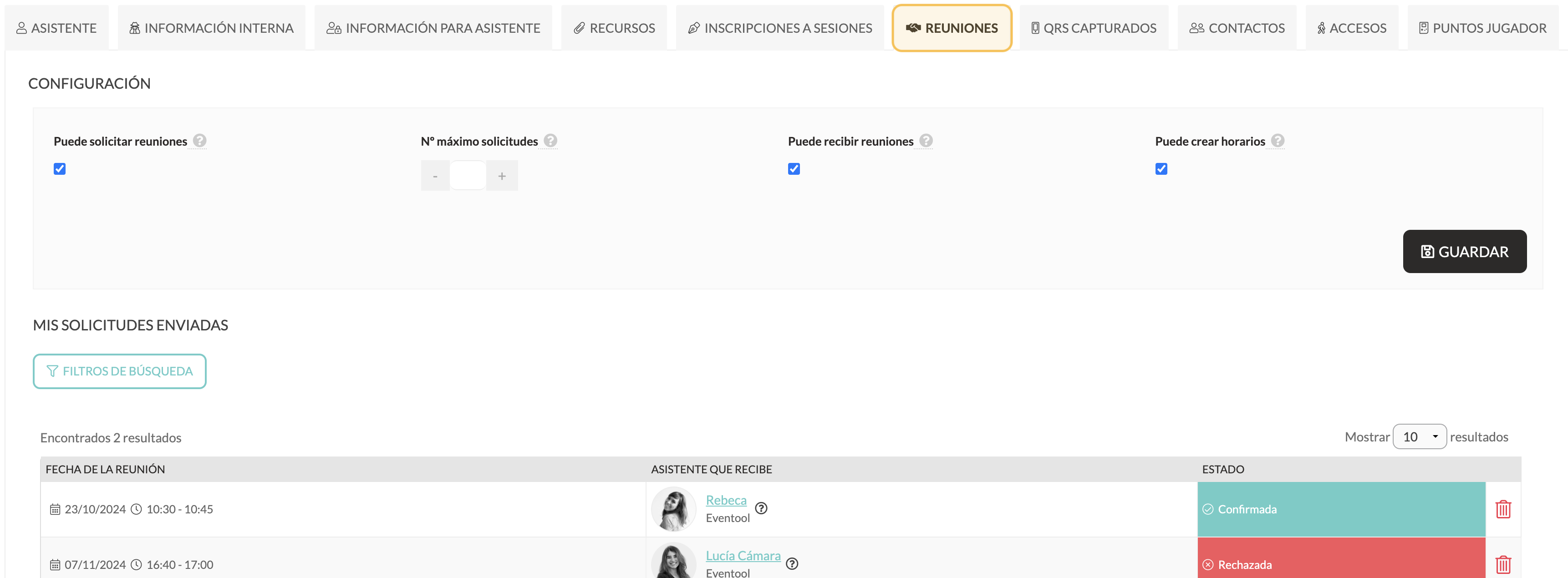
## Meetings
In the **Meetings** tab, you can:
* View assistant meetings.
* Edit the sections managed from the panel.
* Check variables such as availability and status for each meeting.
***
## Captured QRs
This section is useful if you have activated the **QR Capture** system. Here you will see the QR codes that the assistant has scanned (for example, from exhibitors).
📌 *It does not include QR codes from other attendees; these appear in the Contacts tab.*
***
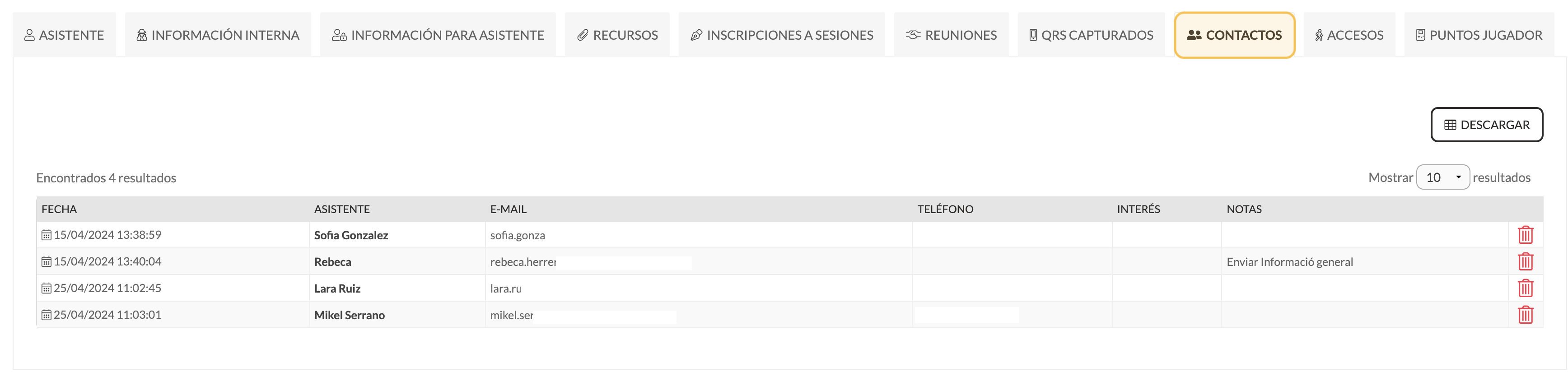
## Contacts
Shows the contacts that the assistant has exchanged from the app.
***
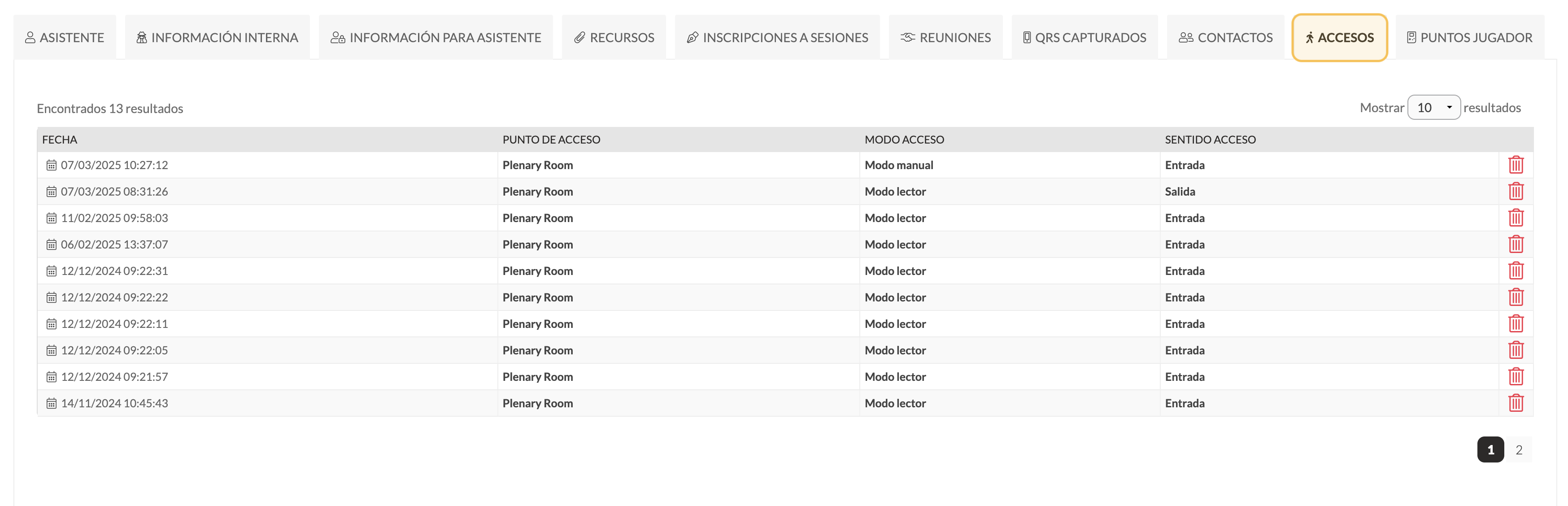
## Accesses
Here you can check the event attendee's access history if you are using the **Accreditation and Check-in** system.
***
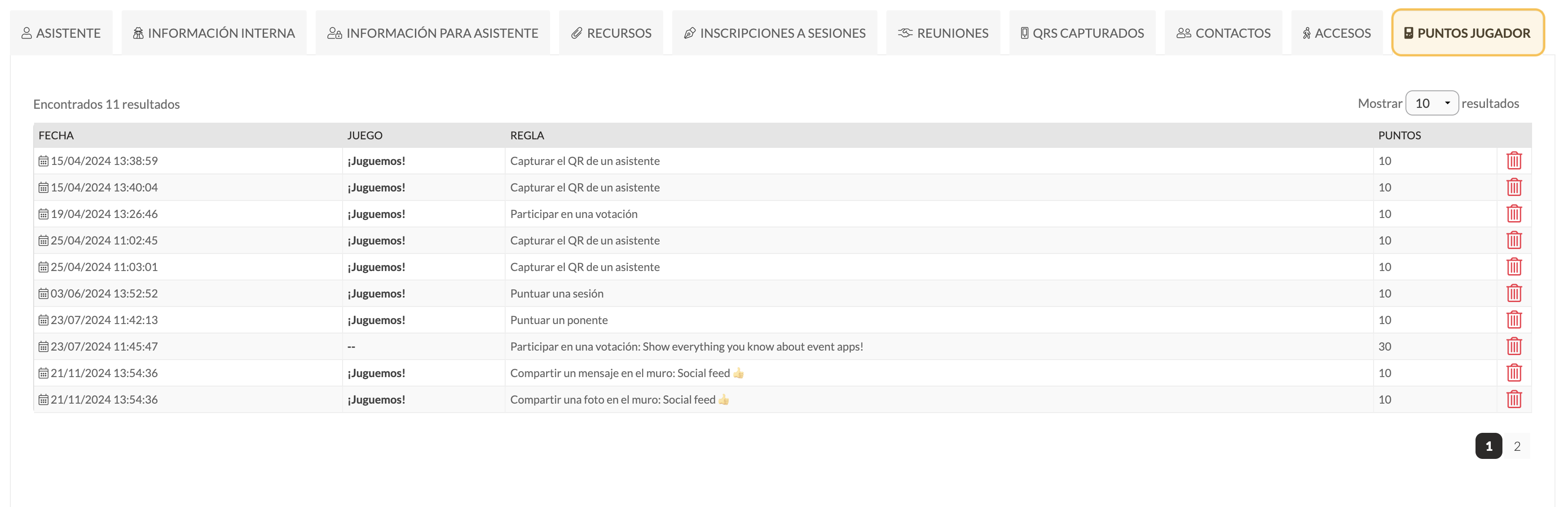
## Player points
If you have activated a game dynamic from the panel, in this tab you will see the points accumulated by the assistant.