> For the complete documentation index, see [llms.txt](https://help.eventool.com/llms.txt). Markdown versions of documentation pages are available by appending `.md` to page URLs; this page is available as [Markdown](https://help.eventool.com/en/general-content/networking/attendees/how-to-enable-1-to-1-chat-between-attendees.md).
# How to enable 1-to-1 chat between attendees
Would you like to offer your event attendees the option of sending private messages to each other? With Eventool, you can easily activate one-to-one chat. Here is a step-by-step guide on how to do this from the management panel:
## 1. Activate the Networking section
The chat between attendees depends directly on the **Networking** module, so it is essential that this section is enabled within the app structure.
To do this, go to:
**APP > Structure**\
Activate the **Networking** module by dragging it to the visible sections menu, if it is not already there.
> This module contains the list of attendees, from where private conversations can be initiated.
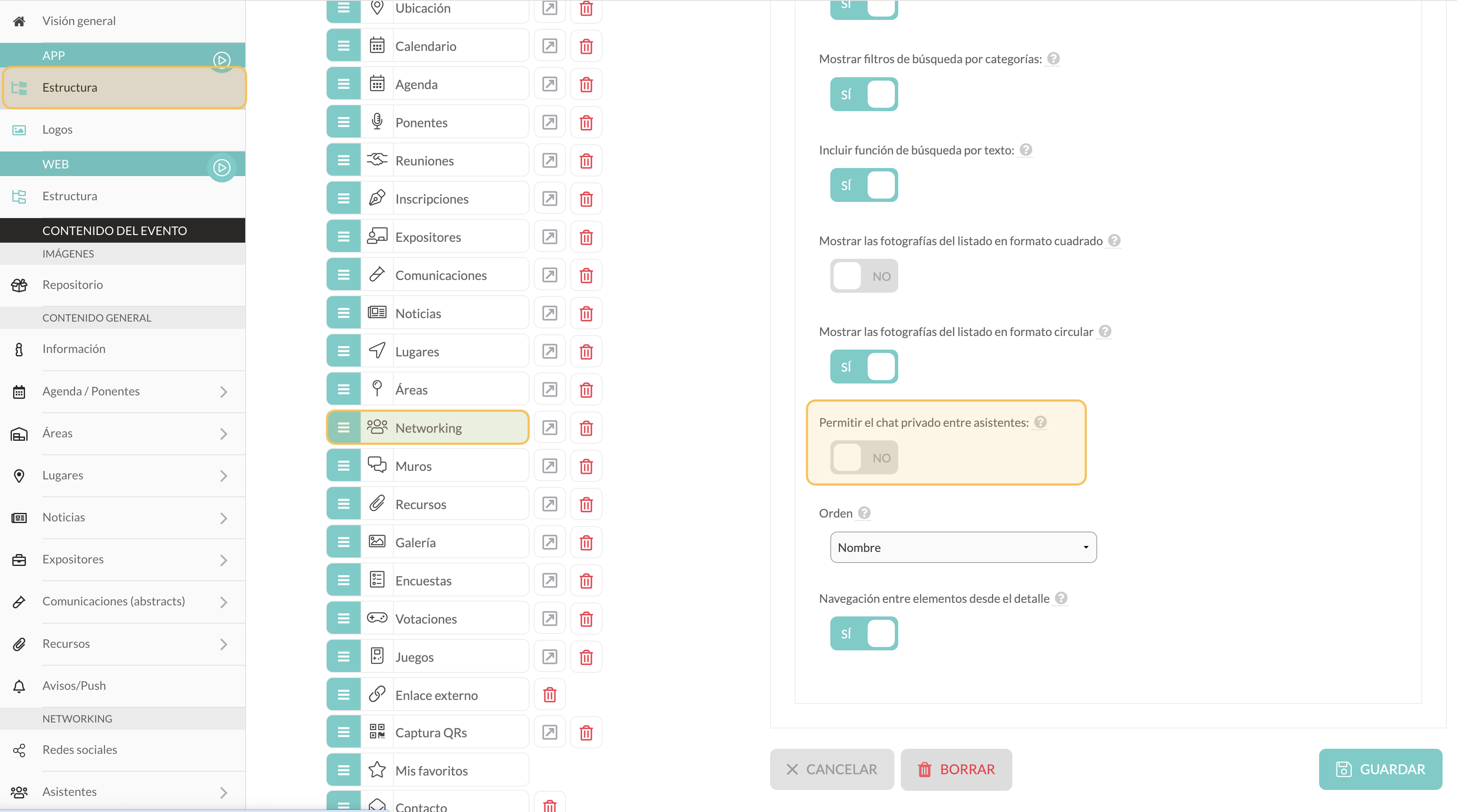
## 2. Enable the private chat option from the Networking settings.
Then, go to the Networking settings section:
**APP > Structure > Networking**
Among the available options, ensure you activate:
**✅ Enable private chat between attendees**
> This option is essential for enabling the private messaging feature between participants.
***
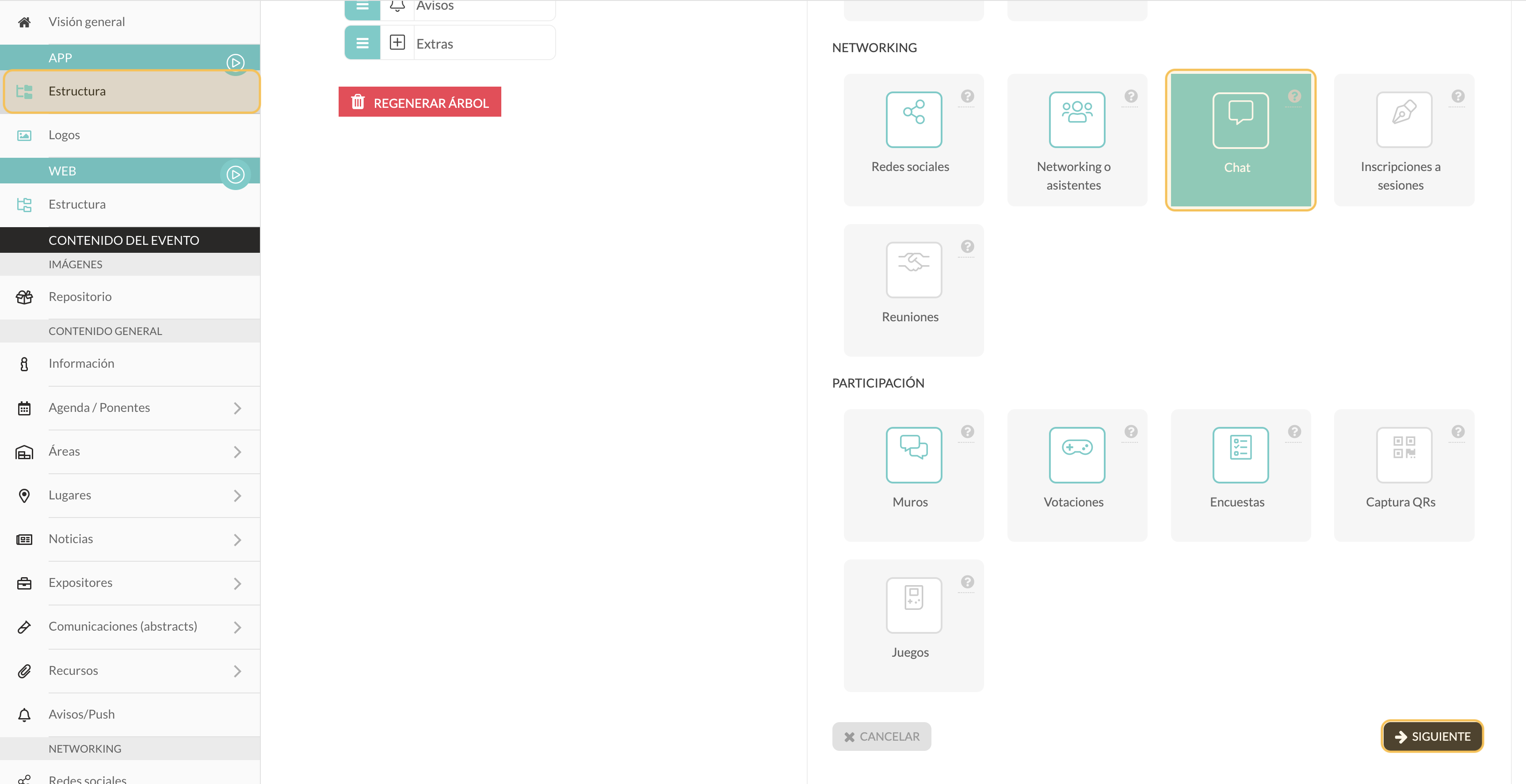
## 3. Add the Chat section to the event structure
It is also necessary to add the chat module so that attendees can access their conversations. To do this:
**APP > Structure > Sections**
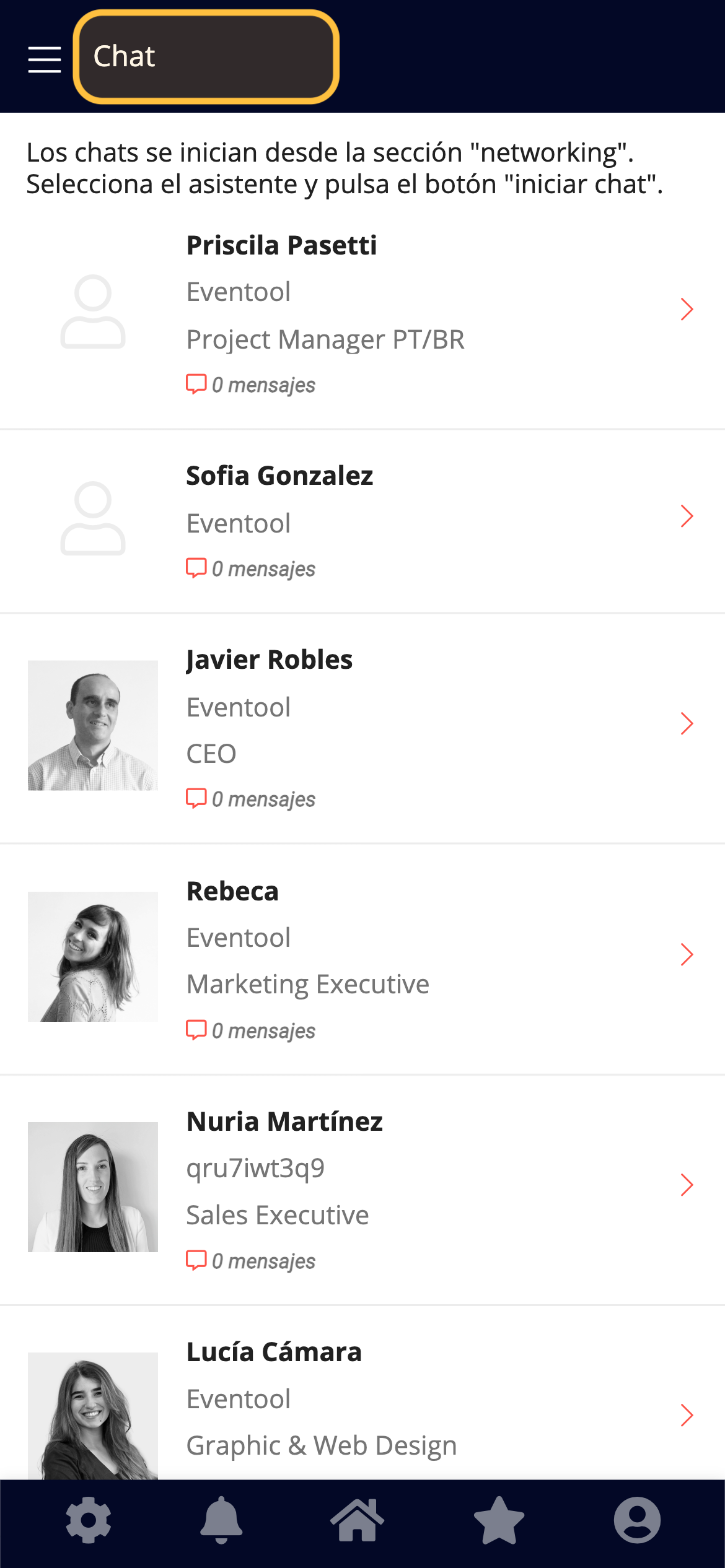
Within the **Networking** category, select the **Chat** module to include it in the app's main menu.
> This section will display the conversation history and allow you to continue conversations that have been started.
***
## 4. How can attendees chat?
Once everything is enabled, attendees should follow these steps:
1. Log in to your profile from the app or the virtual event.
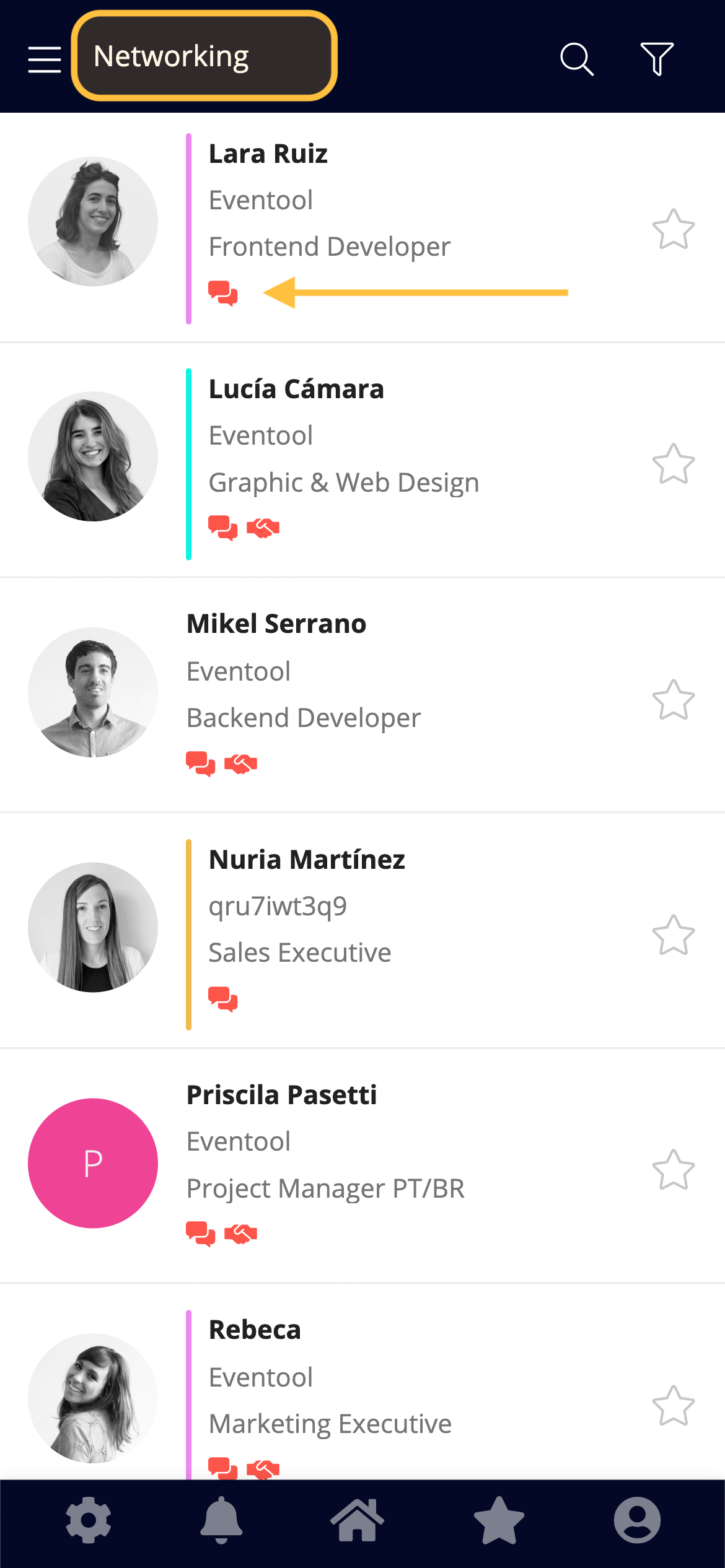
2. Go to the list of **attendees**, within the **Networking** section.
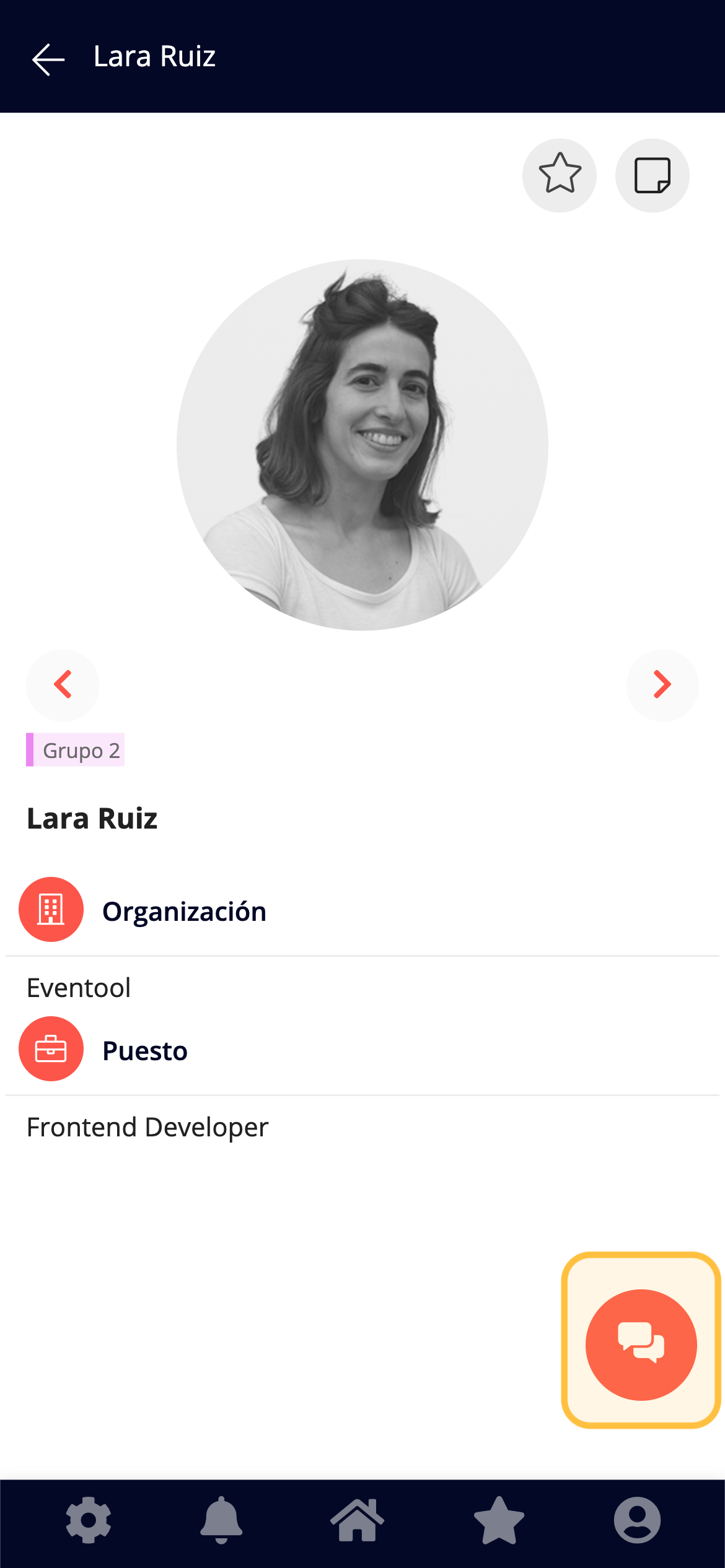
3. Select the person you wish to contact.
4. Click on **Start conversation.**
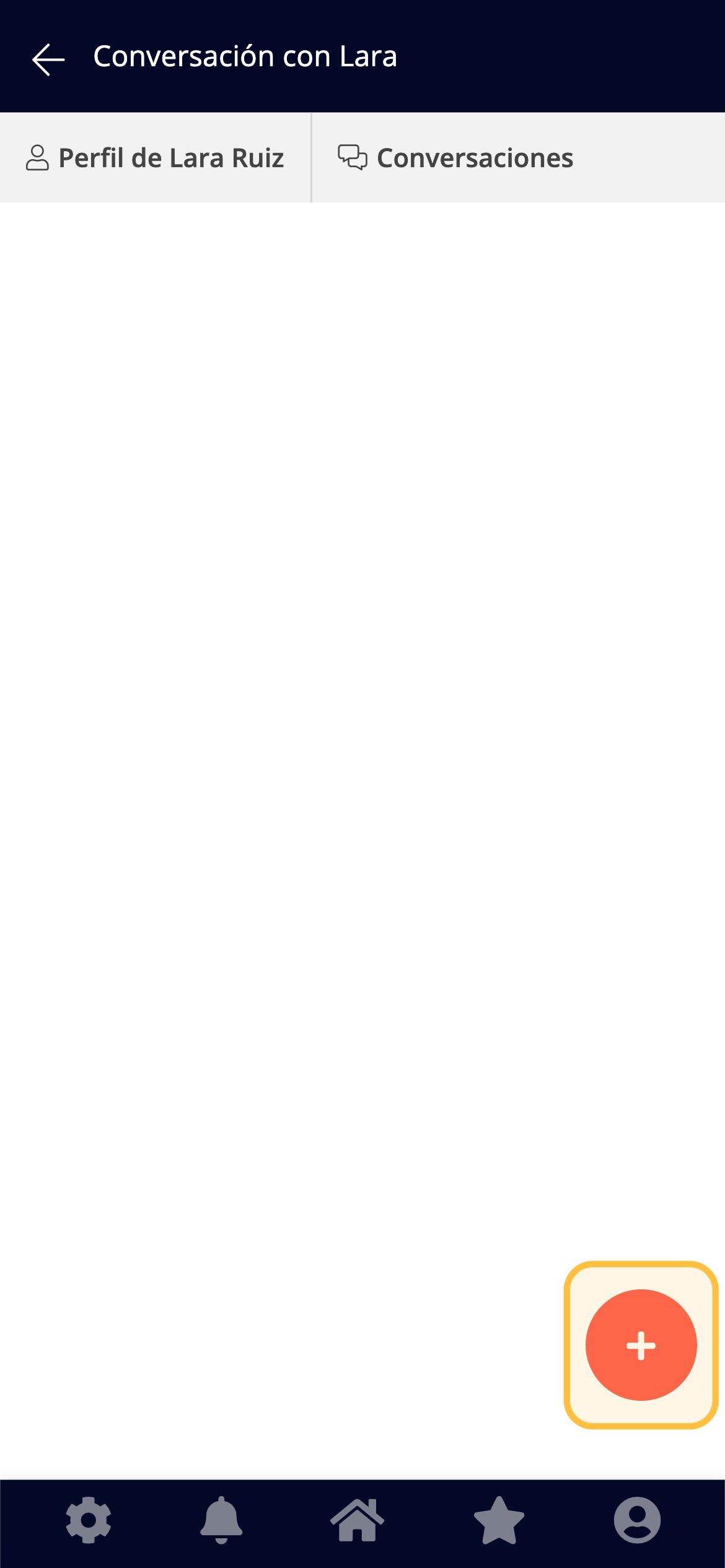
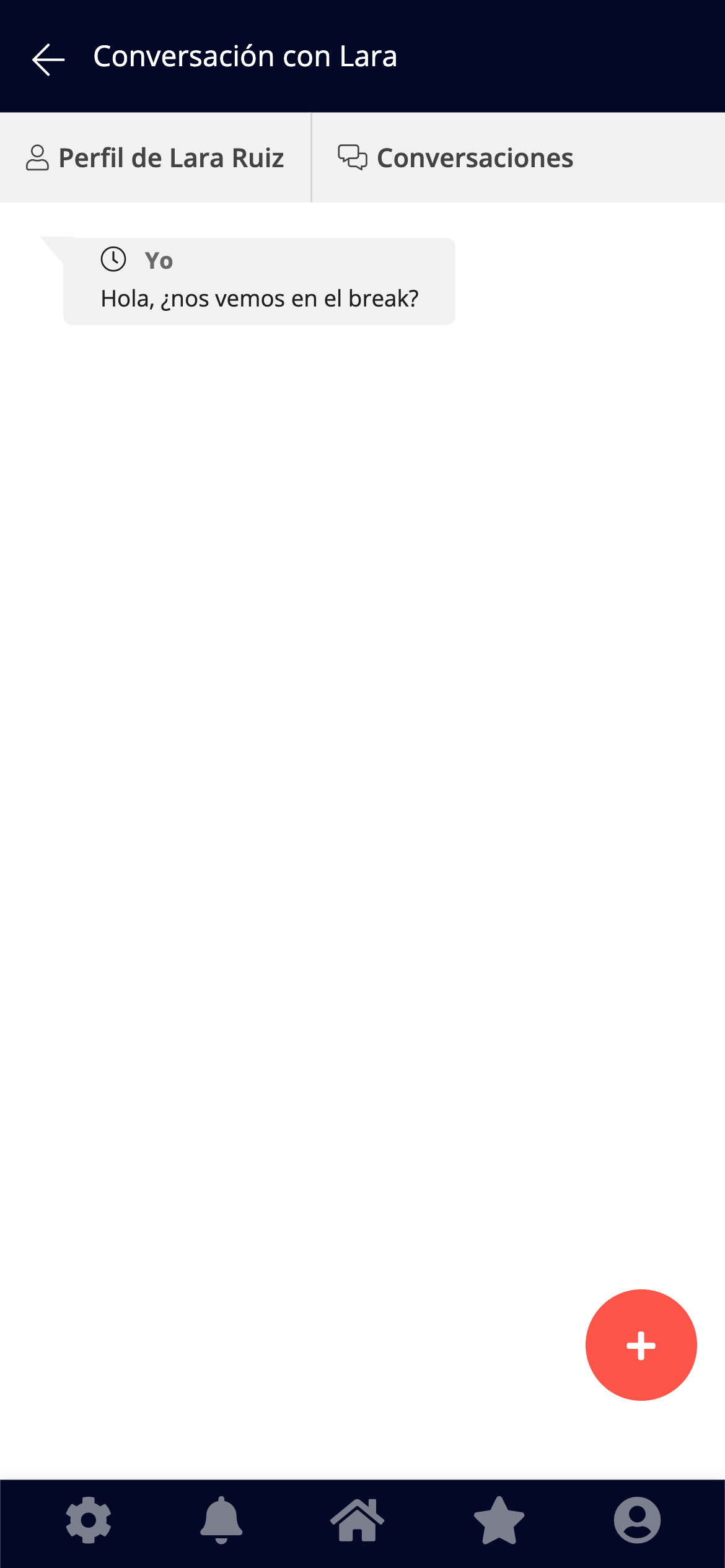
Afterwards, they will be able to view and follow active conversations from the **Chats** section.
***
Ready!
Following these steps:
* Attendees will be able to search for other participants of the event
* Start and maintain private conversations from the platform.
* Strengthen networking opportunities during the event.
💡**Tip**: You can complement this function with search filters by name or category, also available in the Networking section, to facilitate connection between attendees.