> For the complete documentation index, see [llms.txt](https://help.eventool.com/llms.txt). Markdown versions of documentation pages are available by appending `.md` to page URLs; this page is available as [Markdown](https://help.eventool.com/en/general-content/networking/attendees/how-to-create-and-use-attendees-categories.md).
# How to create and use attendees categories
> Attendee categories help you organise your database, segment profiles, and personalise the experience in the app or virtual event.
## What are attendee categories?
**Categories** allow you to classify participants according to criteria that you define: sector, type of ticket, interests, professional profile, etc. They can be used for multiple purposes:
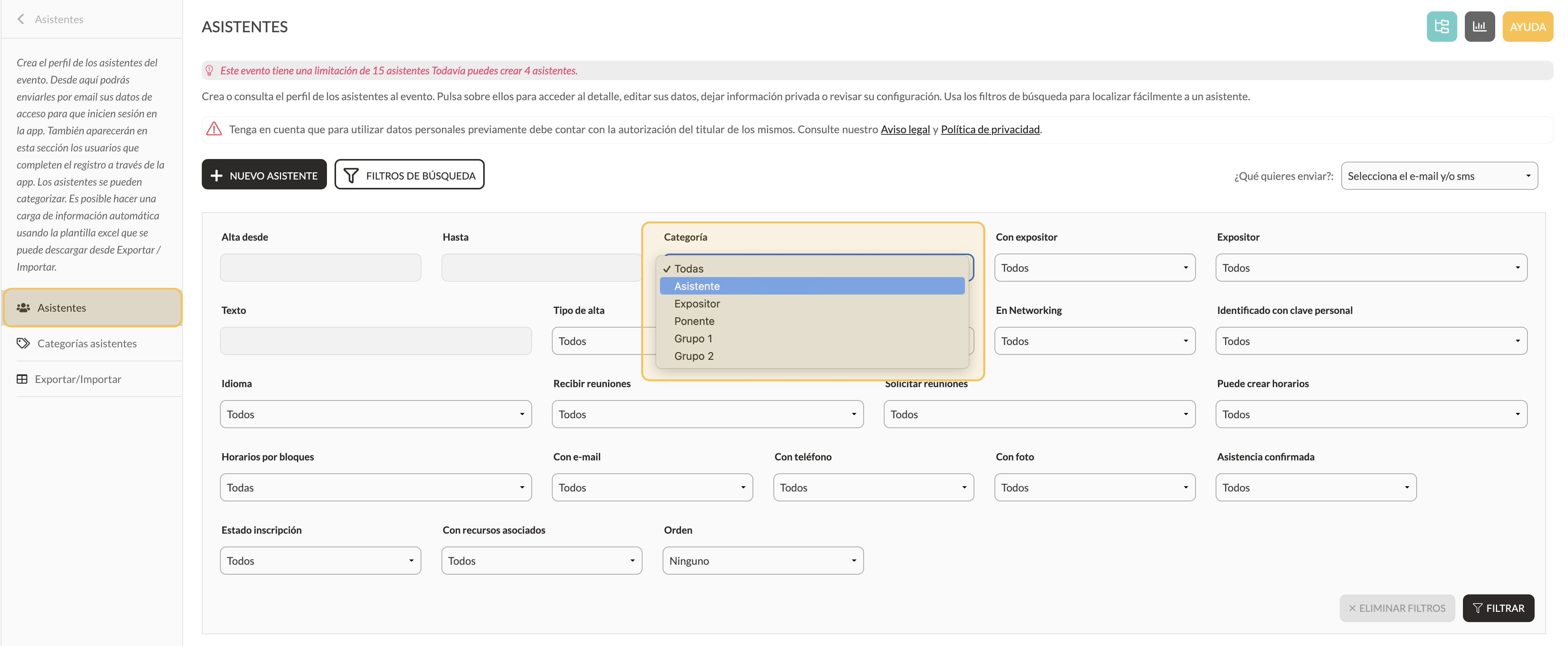
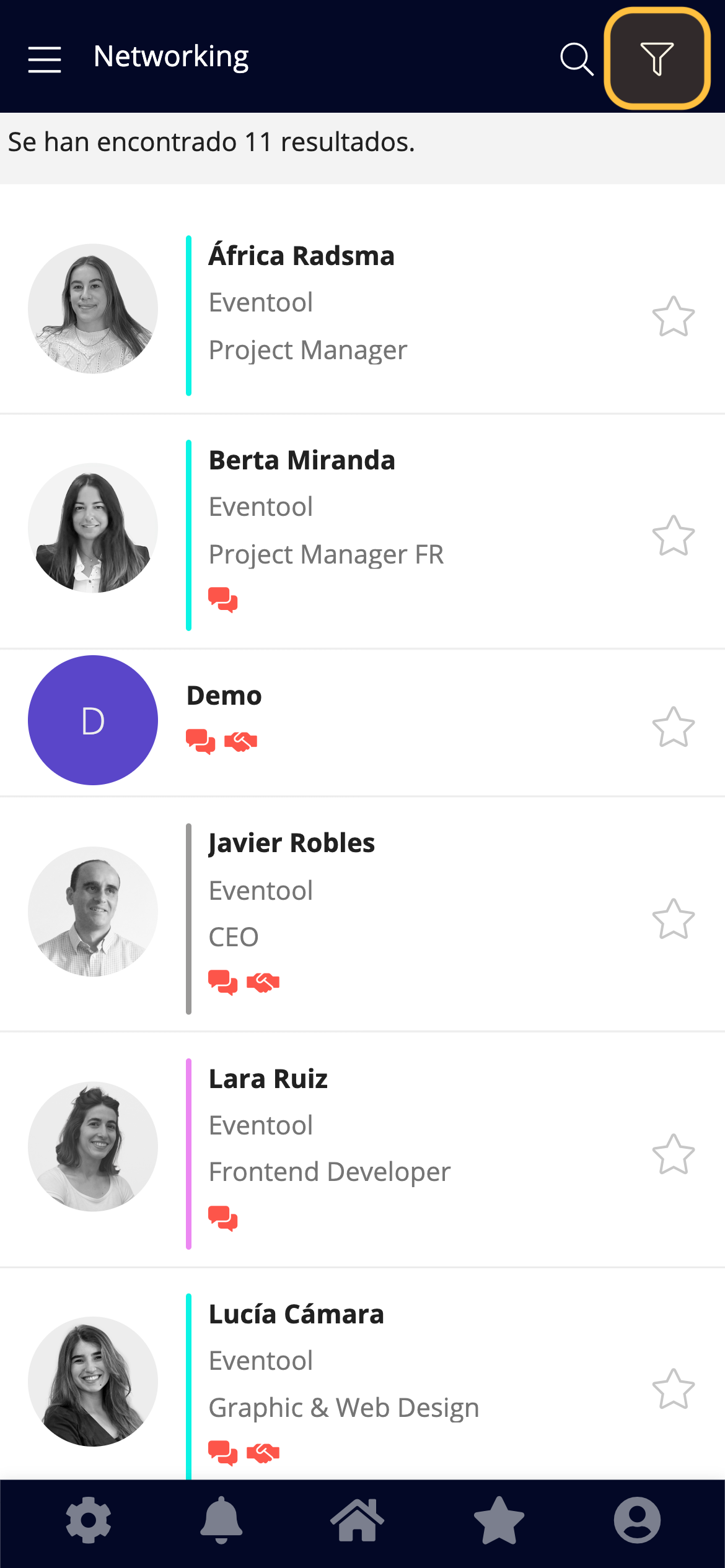
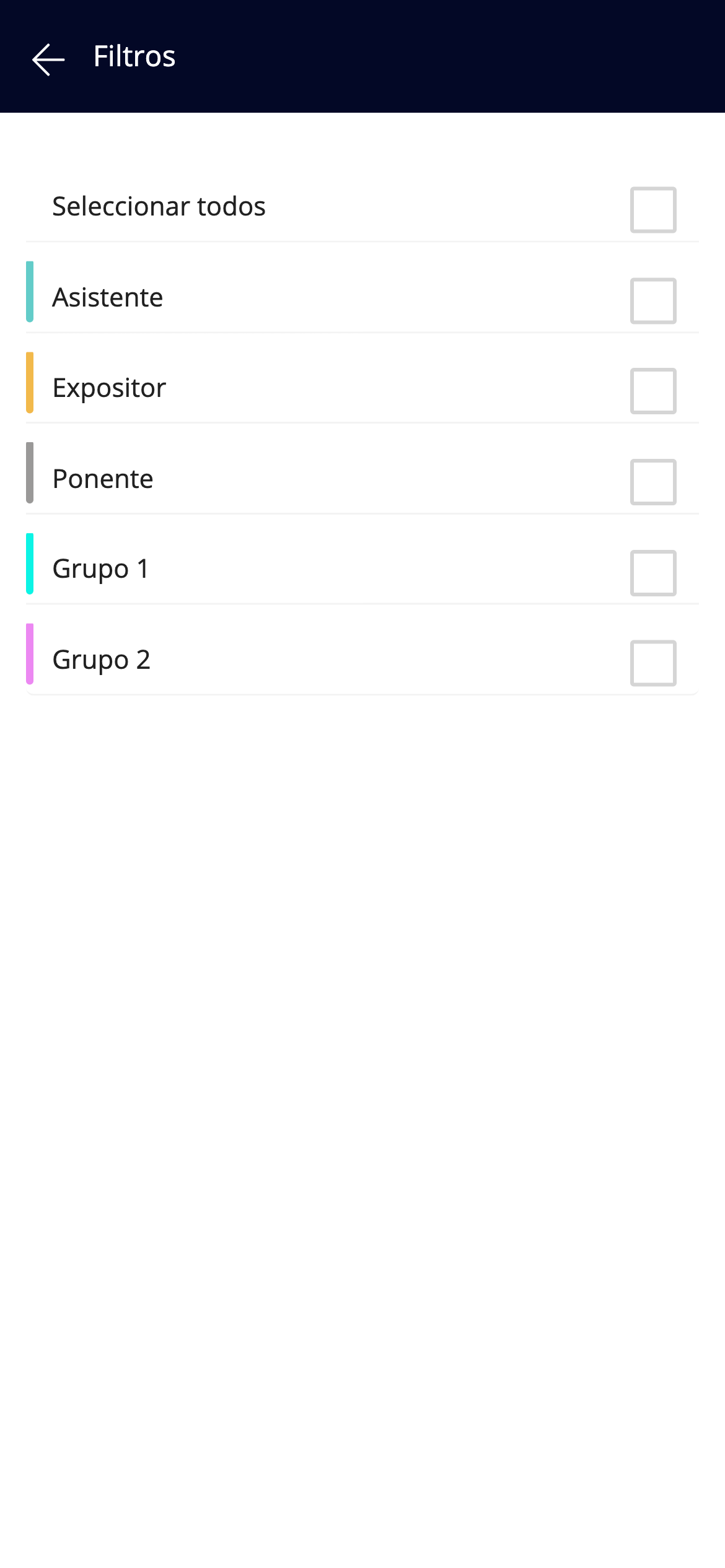
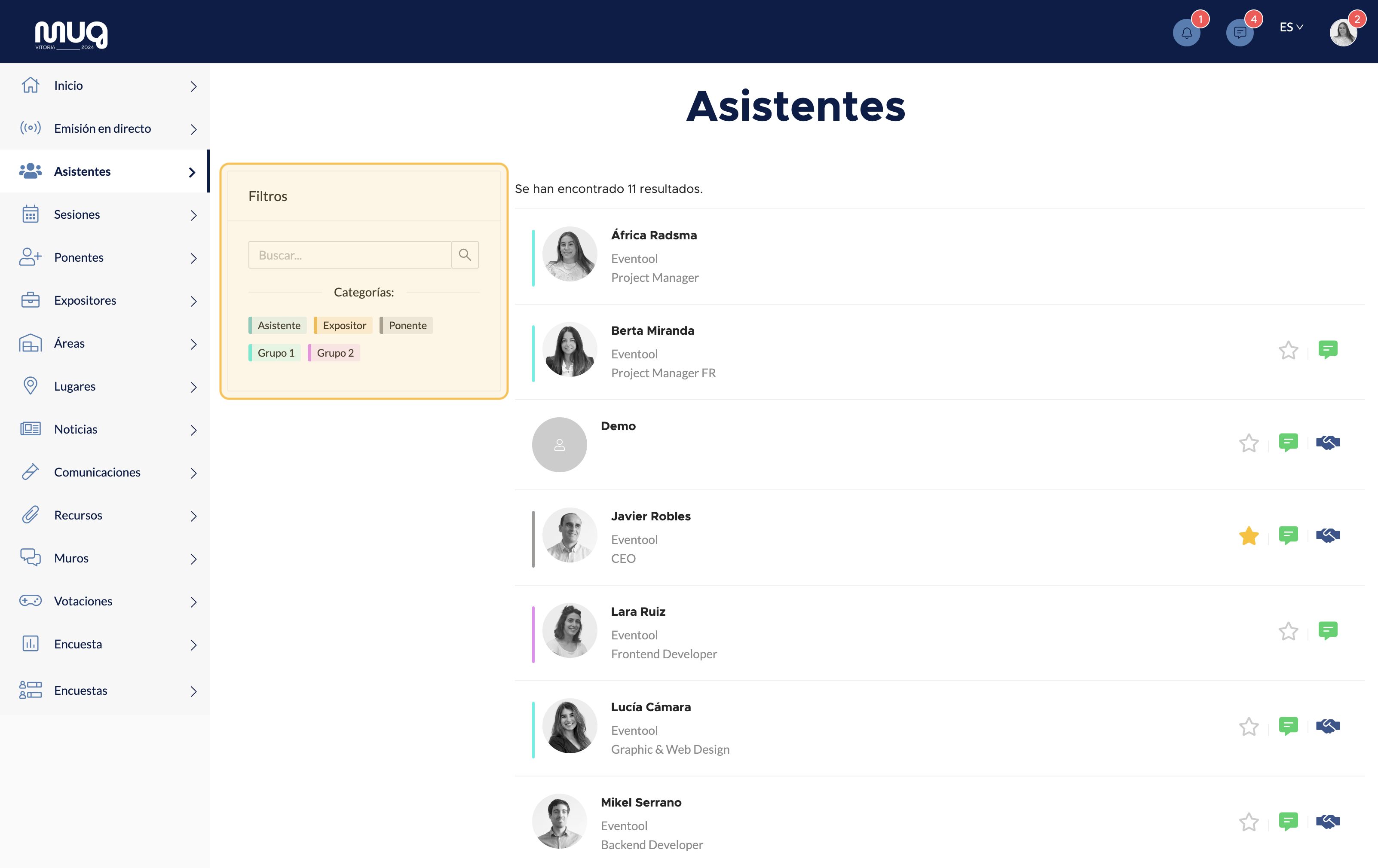
* **Filter attendees** within the panel, app, or virtual event.
Management panel
App
App
Virtual Event
* **Create different sections** of the ‘attendees’ type associated with a specific category so that only attendees with that category are displayed. This is useful if you want to offer different functionalities depending on the type of participation.
* Define access to restricted content within the event.
## How to create a category?
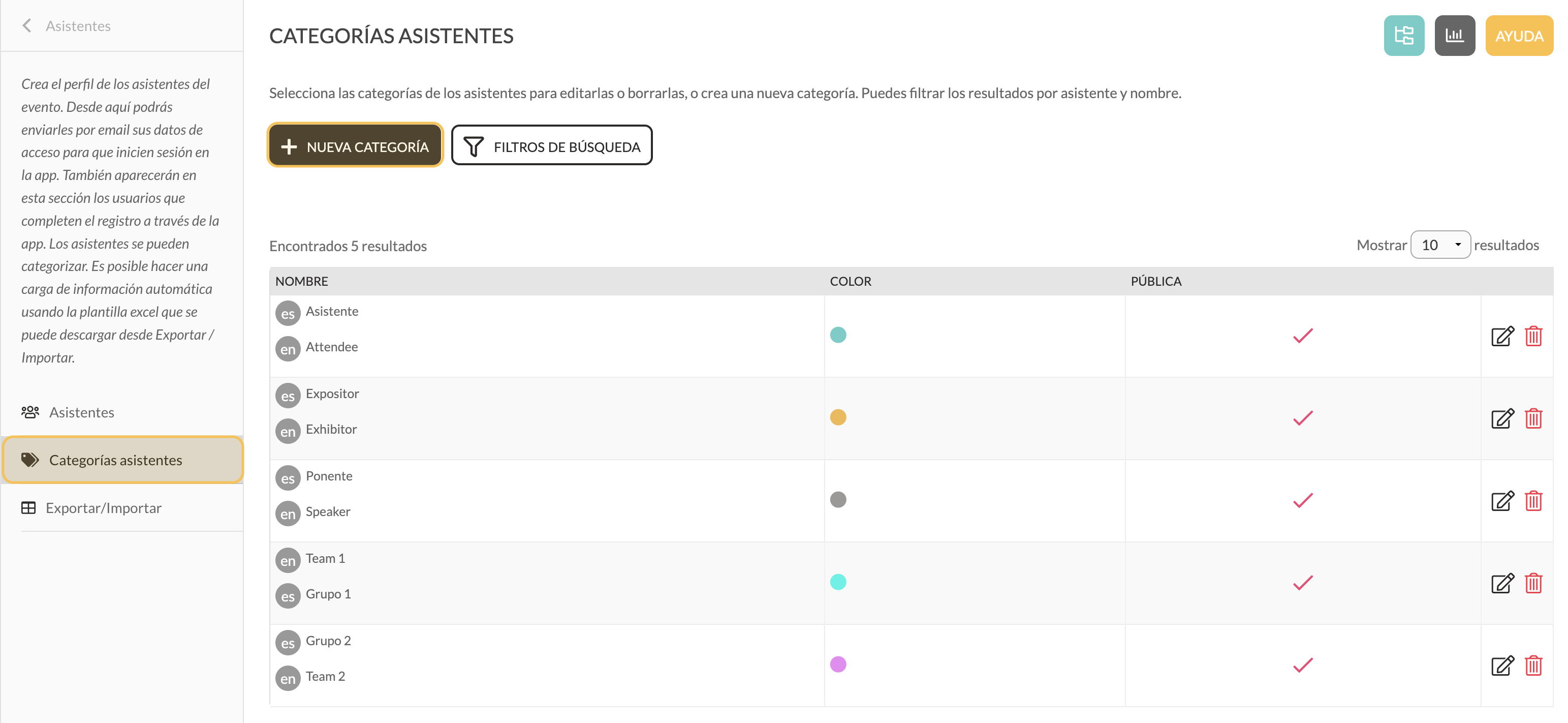
1. Go to the **Attendees** section of the panel.
2. In the side menu, go to **Attendees Categories**.
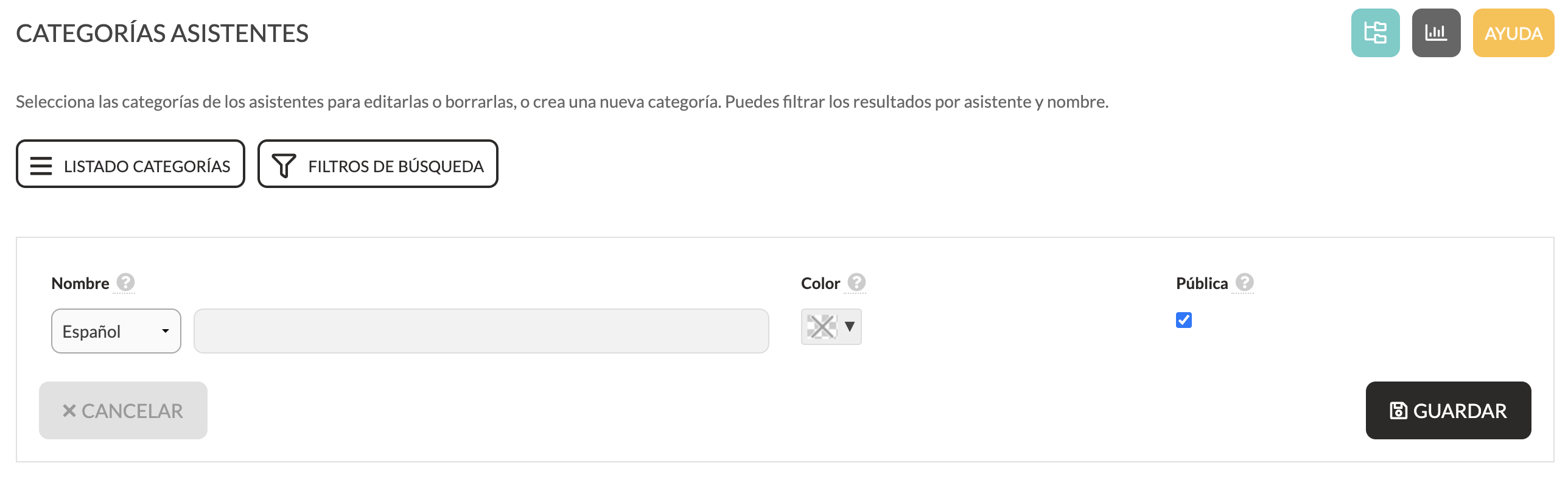
3. Click on **+New category**.
4. Add a name and save.
Categories can be multilingual, have a colour, and be public or private (visible in the app/virtual event) depending on your objectives.
Categories can also be created and associated directly from the attendees Excel file.
## How to assign categories to an assistant?
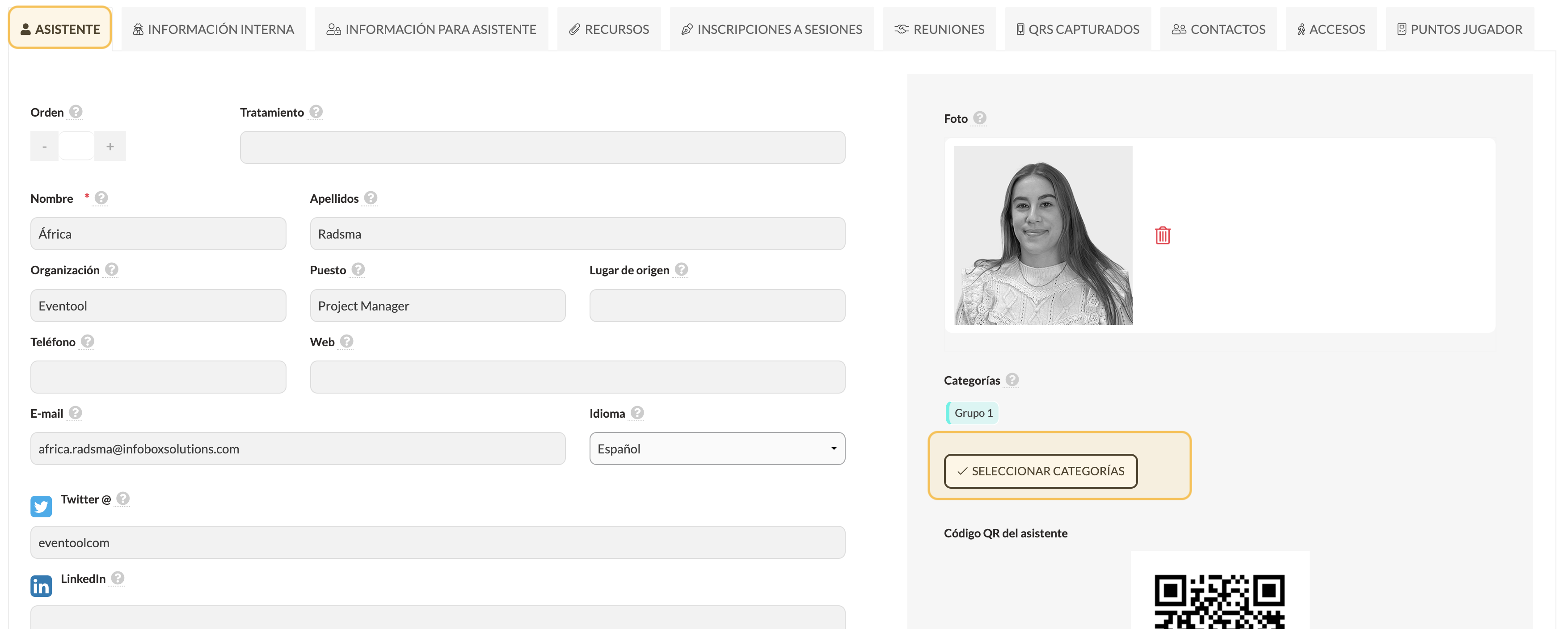
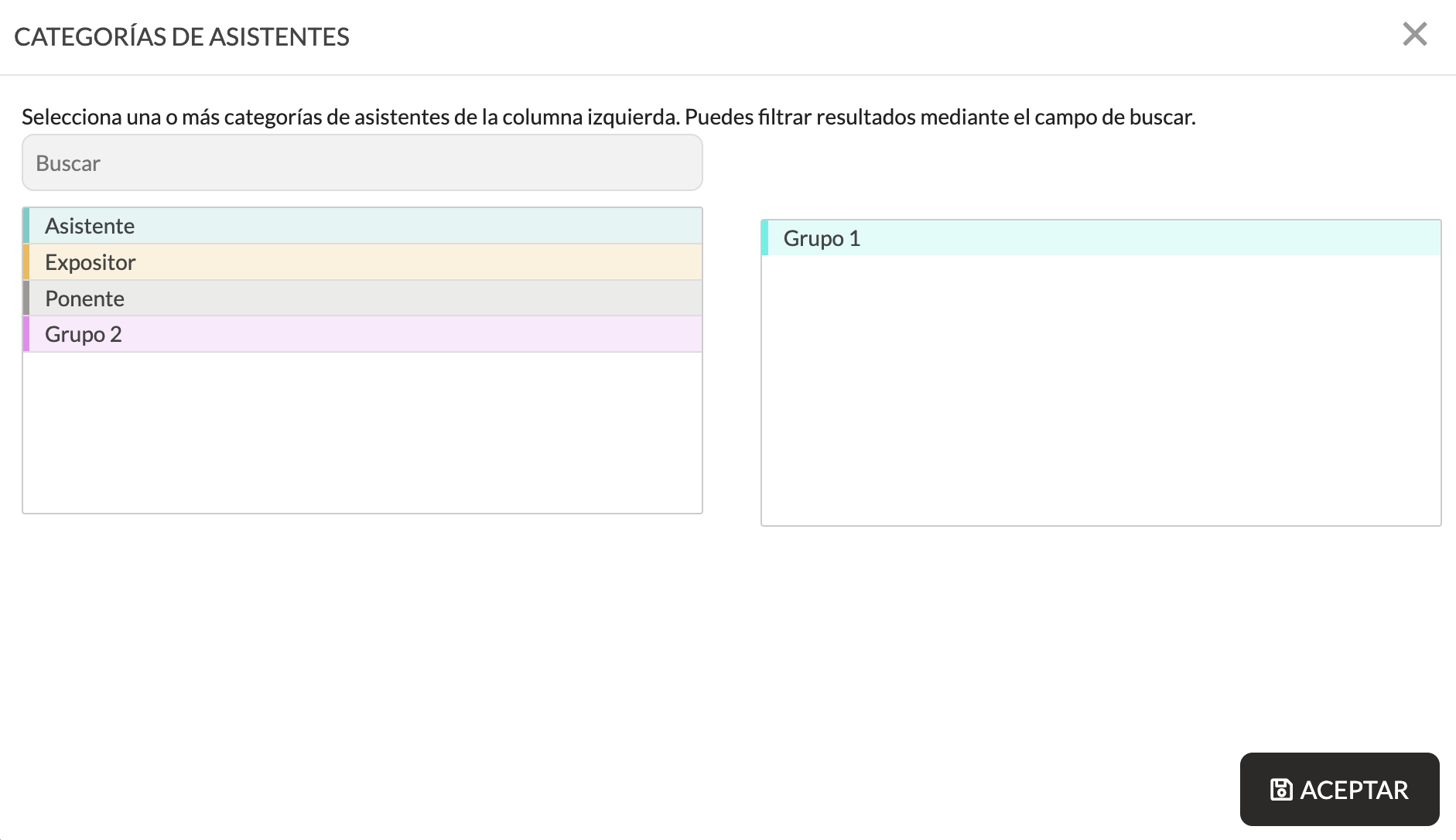
When editing an attendee from the panel (either during creation or afterwards), you will find the **Categories** field in the **Attendee** tab. You can select one or more categories per person. However, in order to assign categories, they must be created beforehand.
From the attendees Excel file, you can also create and associate categories with attendees directly.