> For the complete documentation index, see [llms.txt](https://help.eventool.com/llms.txt). Markdown versions of documentation pages are available by appending `.md` to page URLs; this page is available as [Markdown](https://help.eventool.com/en/general-content/images/repository.md).
# Repository
### Add images to the event app/website
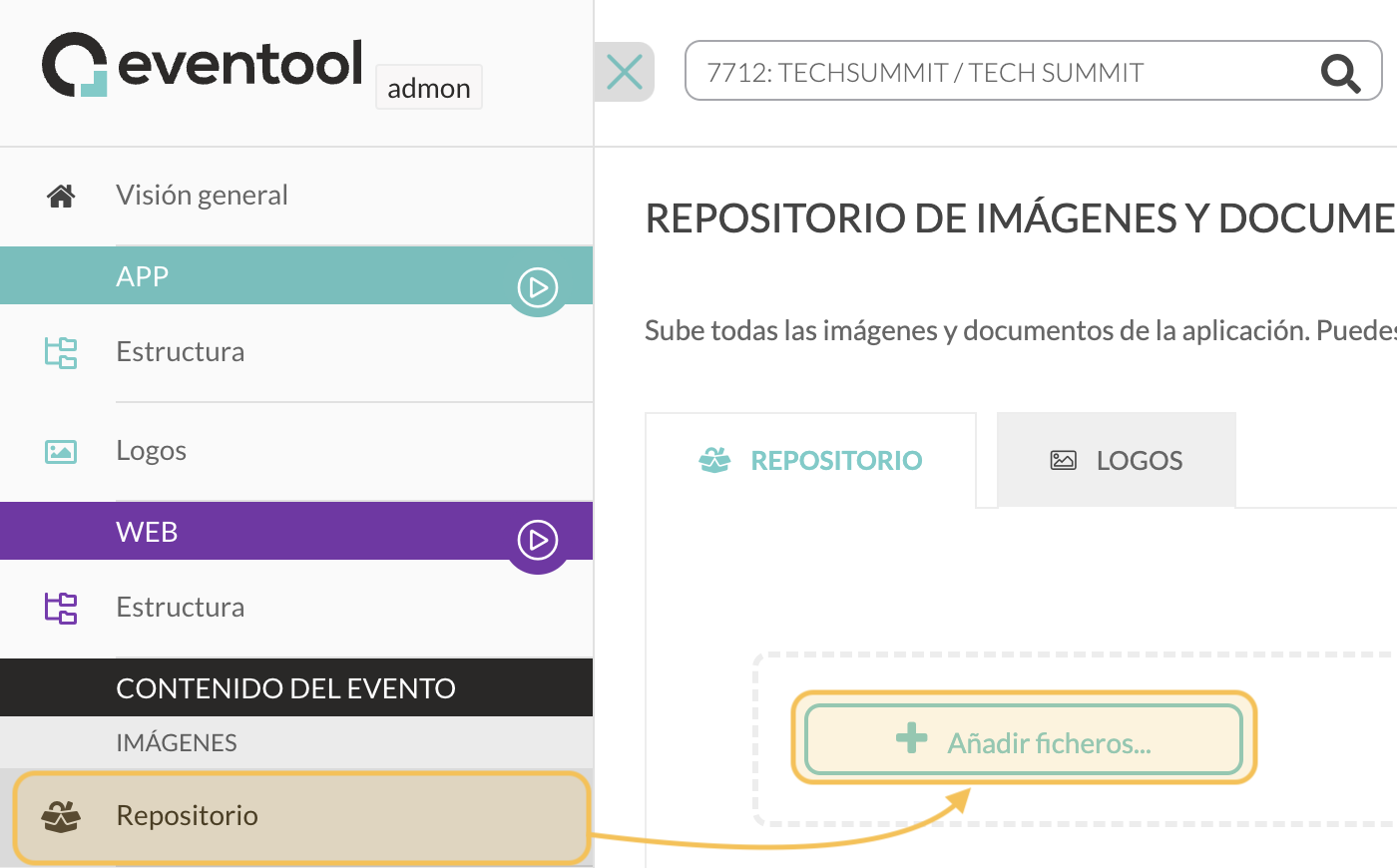
To include images in the **text and multimedia editors** found in the different sections of the administration panel, you must first upload them to the repository.
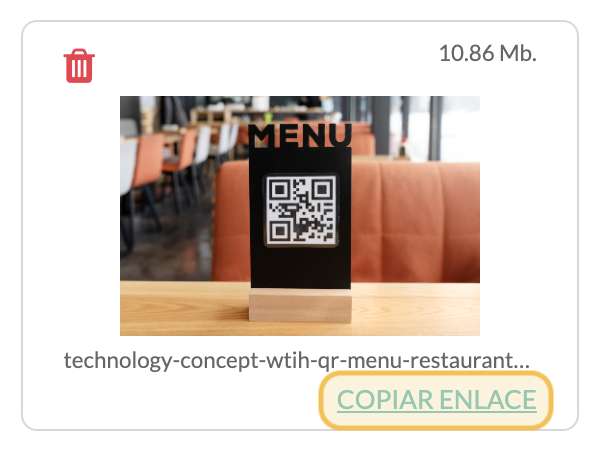
Once the image is uploaded, you need to **copy the link** that is generated so that you can insert it into the text editor of your choice.
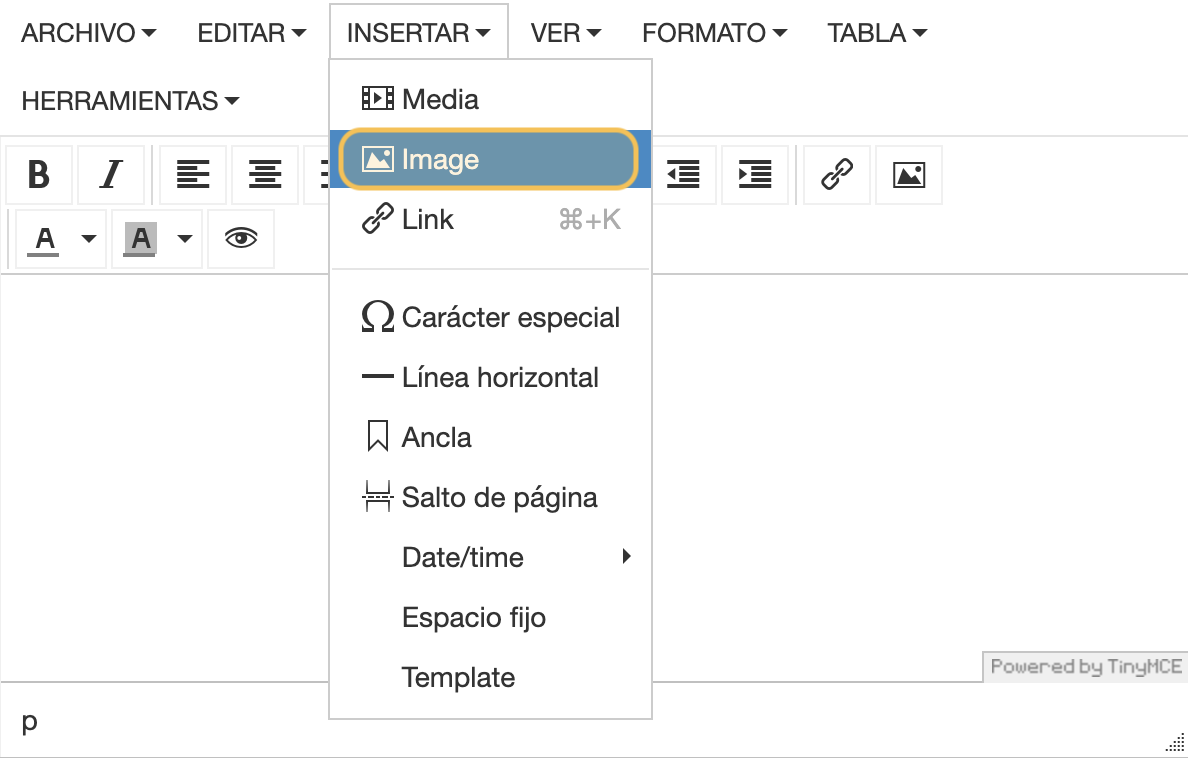
If, for example, we want to insert the image into the text editor in the Information section, we access the section, go to the editor, click on the **Insert button** and select **Image**.
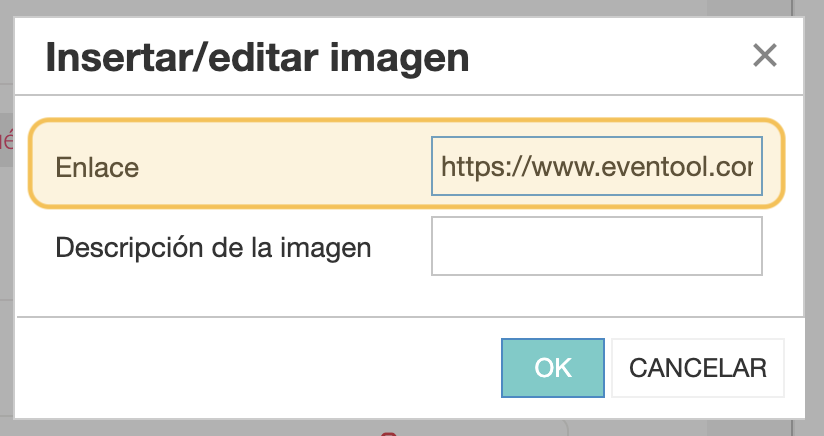
A pop-up window will open with the option to insert the link we copied earlier.
The image will be automatically inserted into the editor. There is no need to resize it unless necessary, as it adapts to different device screens.