> For the complete documentation index, see [llms.txt](https://help.eventool.com/llms.txt). Markdown versions of documentation pages are available by appending `.md` to page URLs; this page is available as [Markdown](https://help.eventool.com/en/dashboard/web-panel-and-virtual-event.md).
# Web panel and virtual event
## Access and first steps in the Eventool web editing panel
If you have permission to edit your event's web pages, you can access them directly from the Eventool management panel. Here is a step-by-step guide on how to do this:
### 1. Web panel access
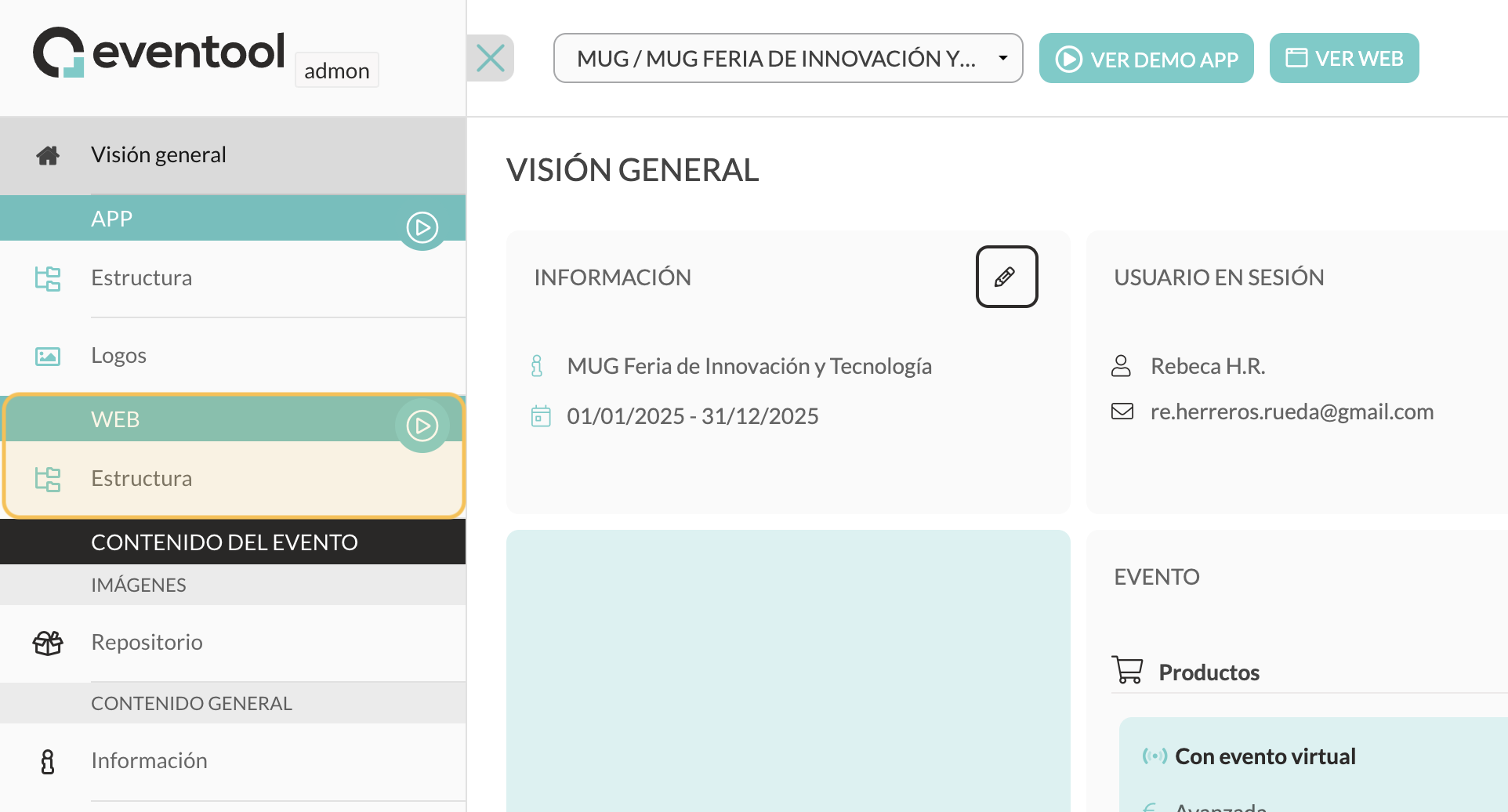
Once inside the Eventool management panel, on the left side of the menu, click on **Web > Structure**.
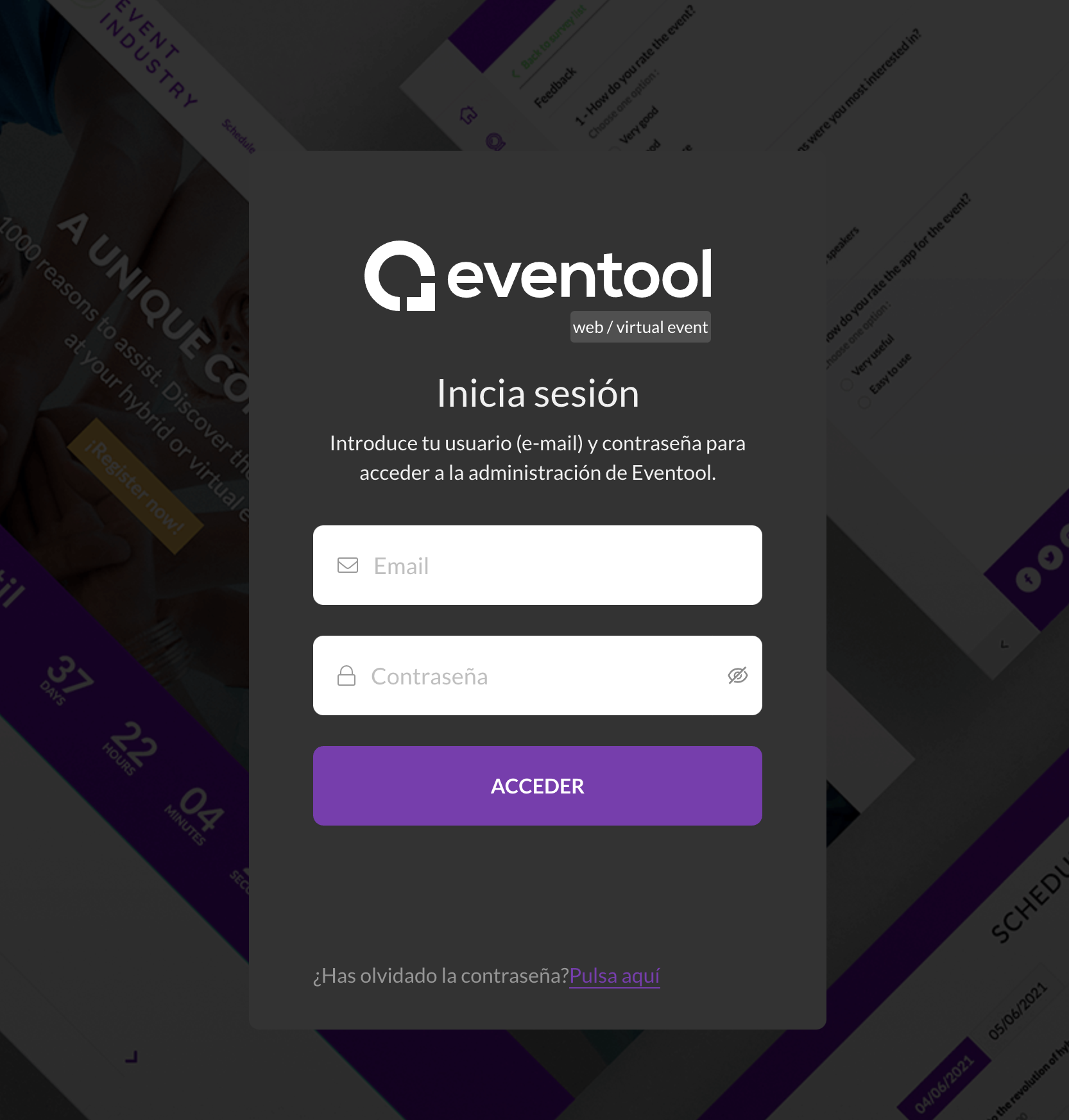
A new login screen will open specifically for editing the event website:
Please re-enter your Eventool credentials to continue.
### 2. Select the page to edit
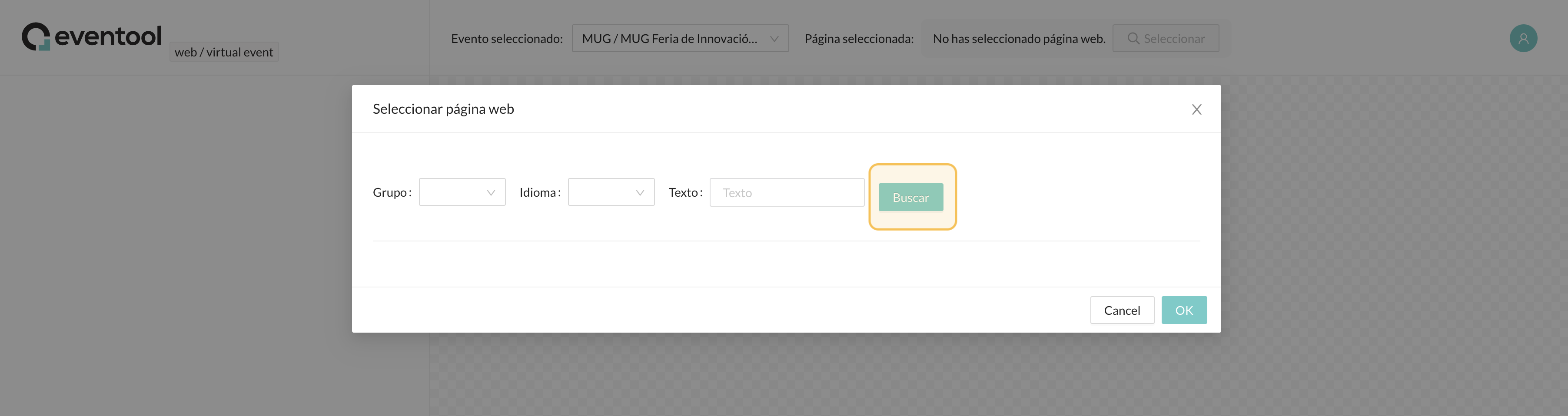
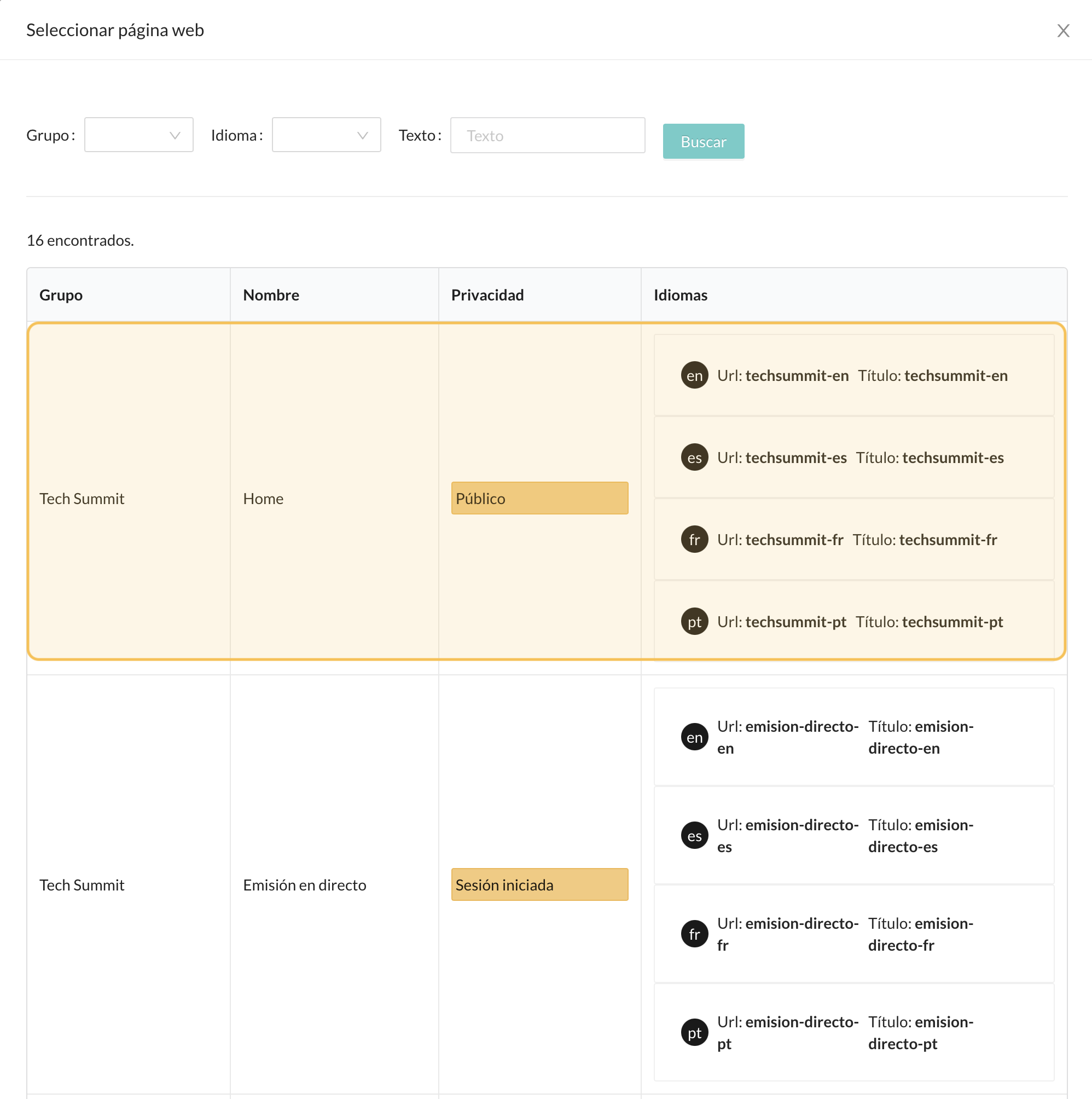
Once inside, a screen will appear where you must select the page you wish to edit. Press the **Search** button to display the available options:
### 3. Structure of the editing panel
Once you have selected the page, you will access the editing environment, which is divided into three main areas:
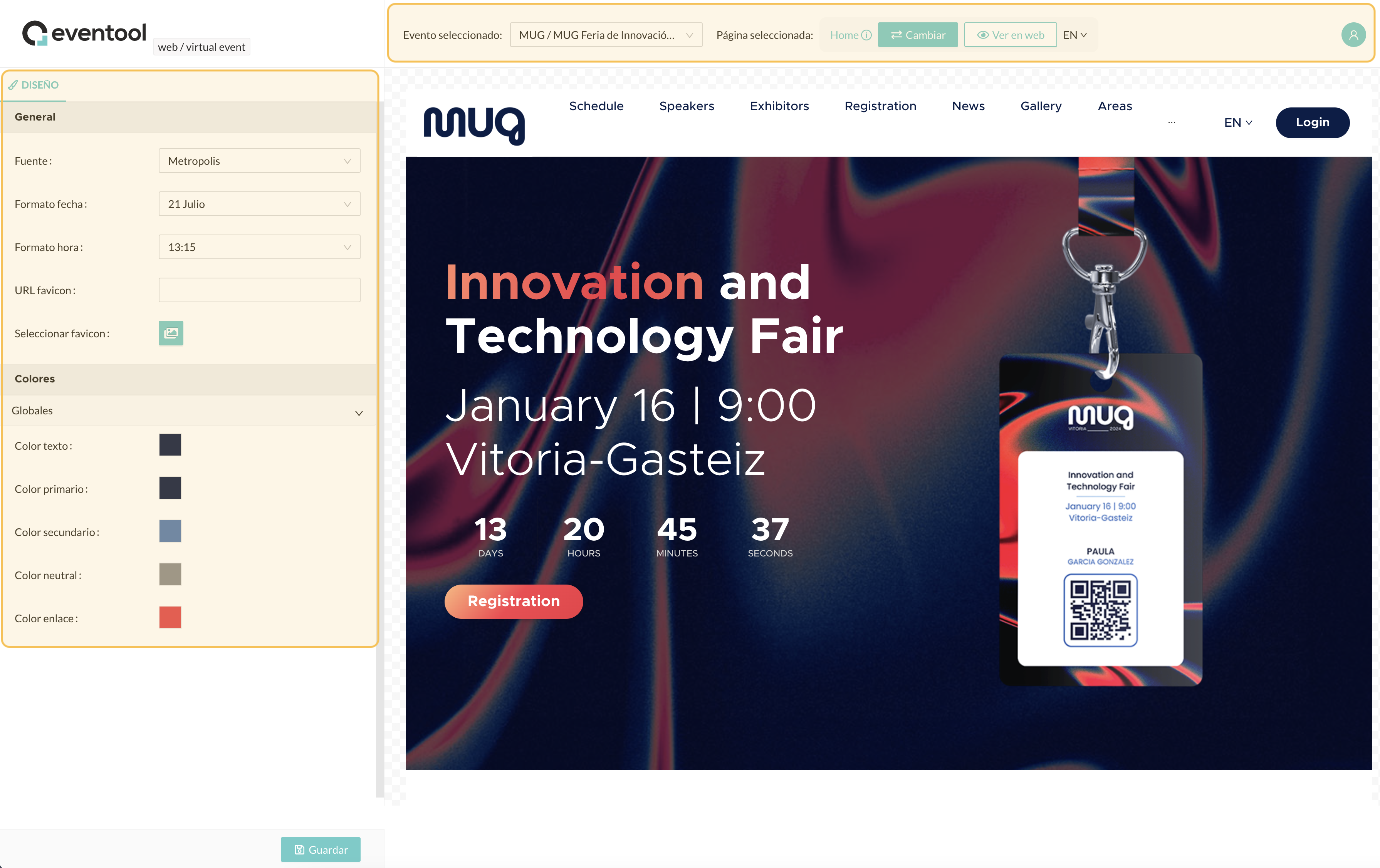
* **Top horizontal menu**: allows you to select the event, change the page being edited, preview the website, change the language (if the event is available in several languages) and log out.
* **Left side menu**: from here you can access the options for editing blocks or components.
* **Central editing area**: this is where you view the website and can make changes to the different elements.
### 4. Available editing options
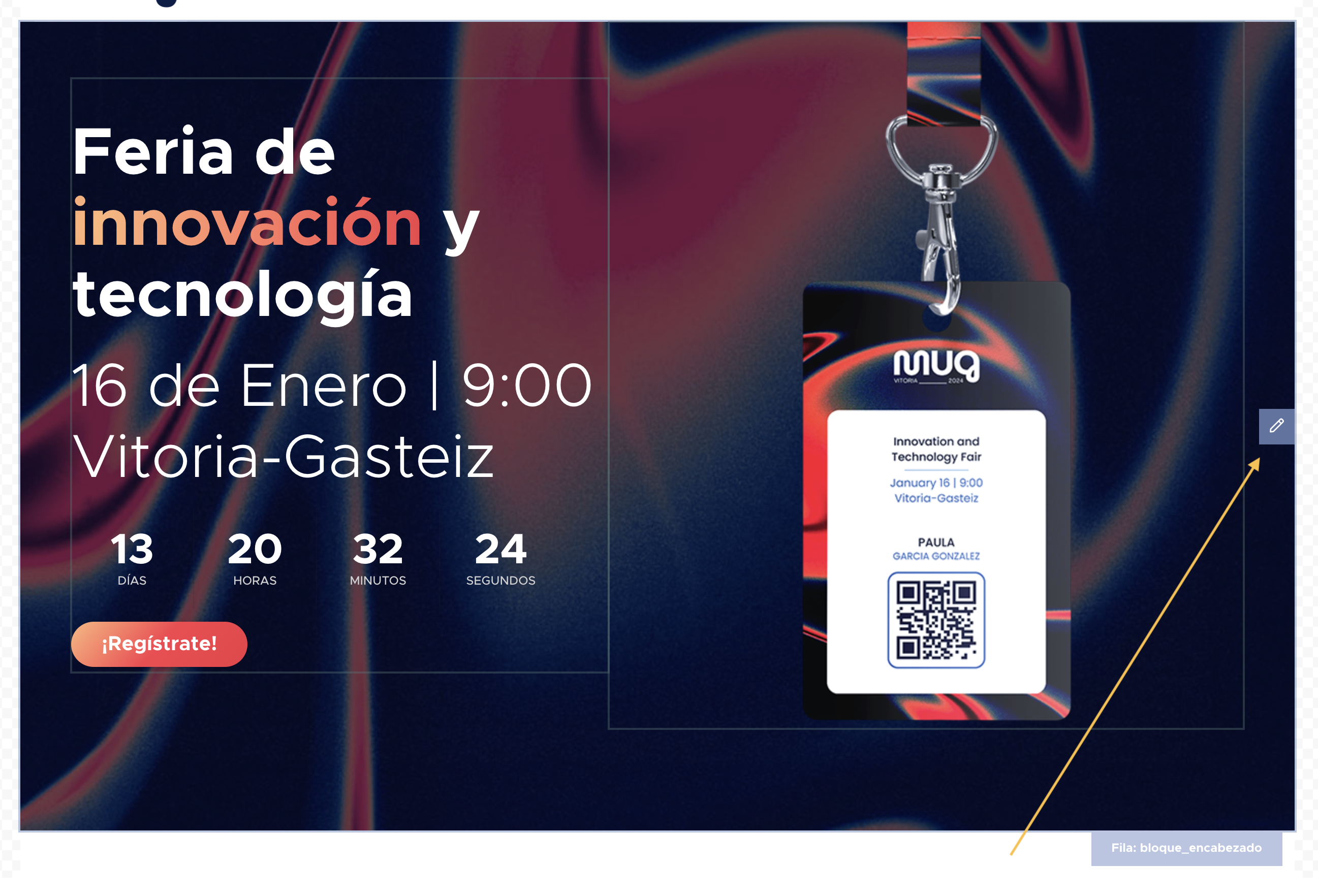
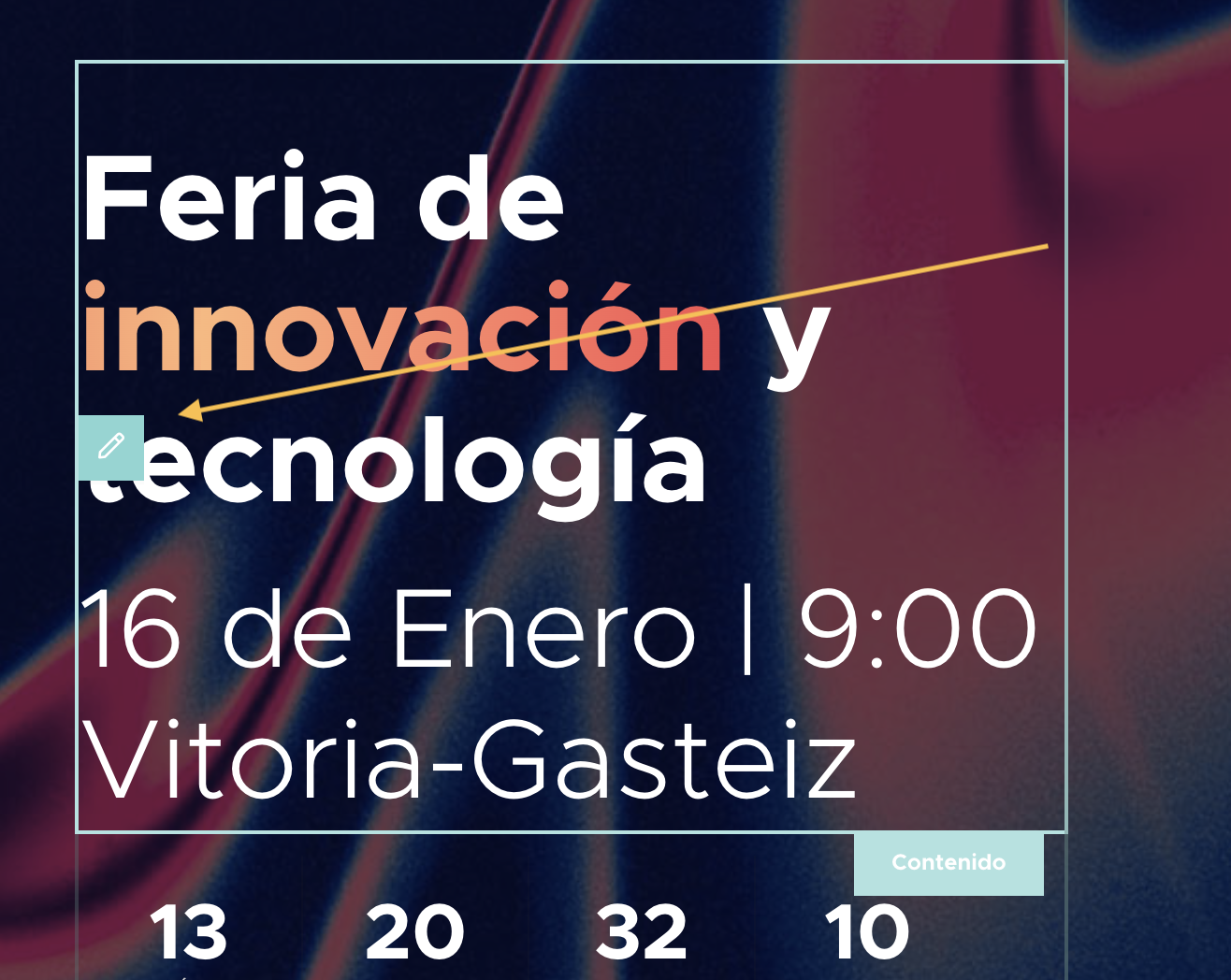
When you hover your mouse over the content blocks, you will see two types of brushes:
* **Navy blue brush**: block editing. Defines general block options.
* **Green brush**: editing components within the block (such as text, agenda, speakers, dates, etc.).
### 5. Editing options
Depending on which brush you click, you will see different editing options in the left side menu:
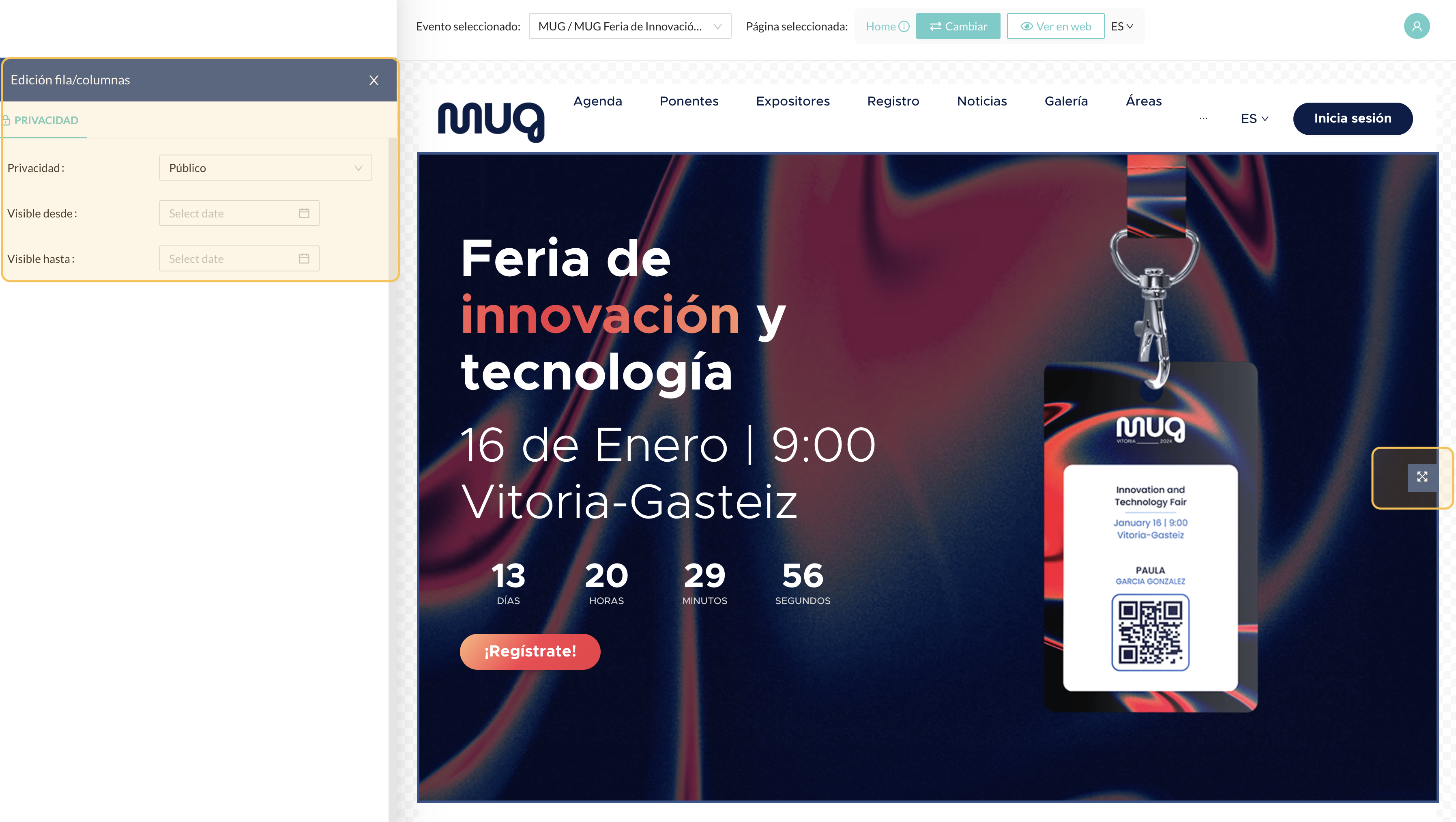
* When you click on the **navy blue brush**, the block configuration options are displayed:
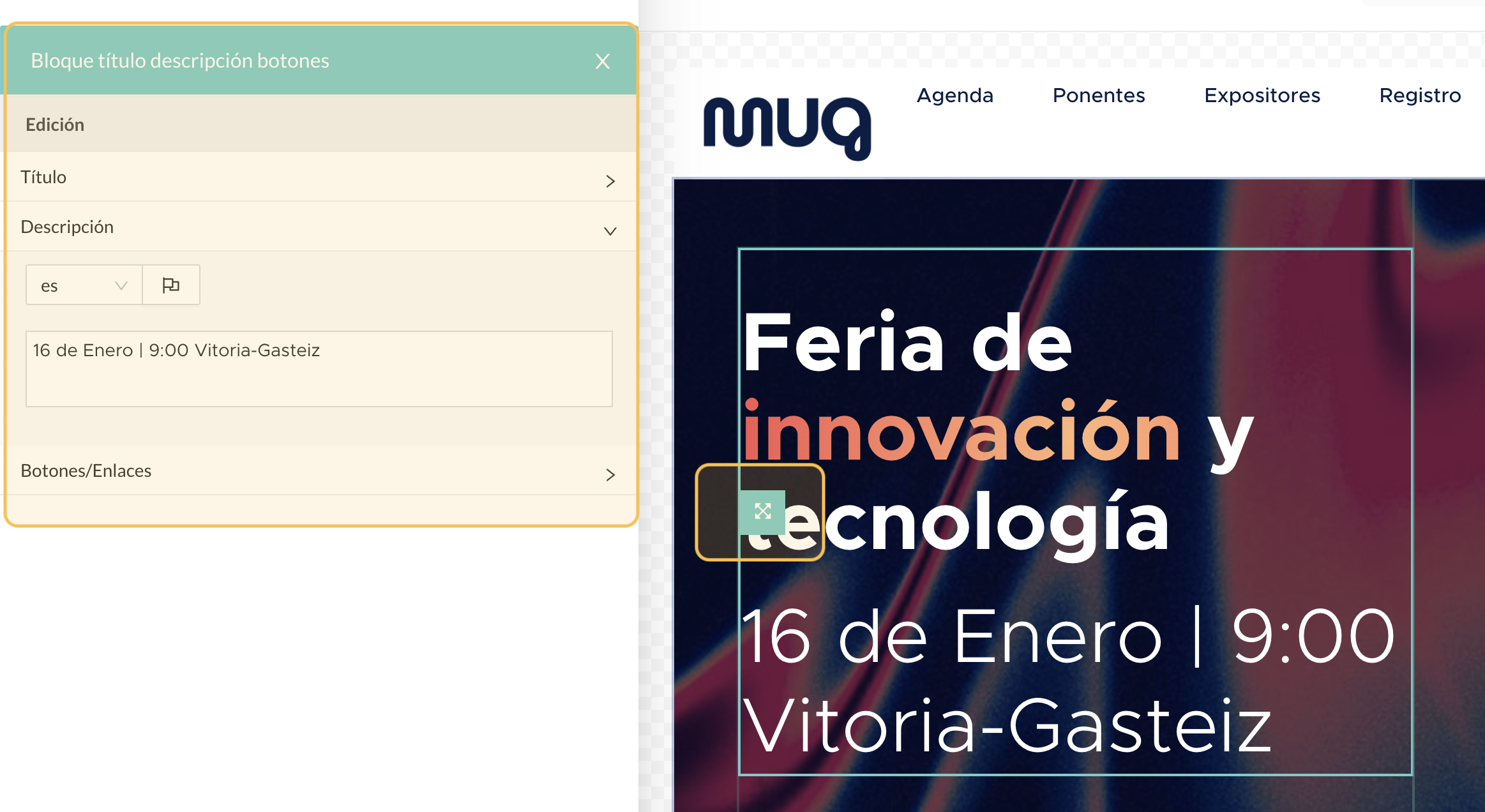
* When you click on the **green brush**, the specific options for that component are displayed:
{% hint style="info" %}
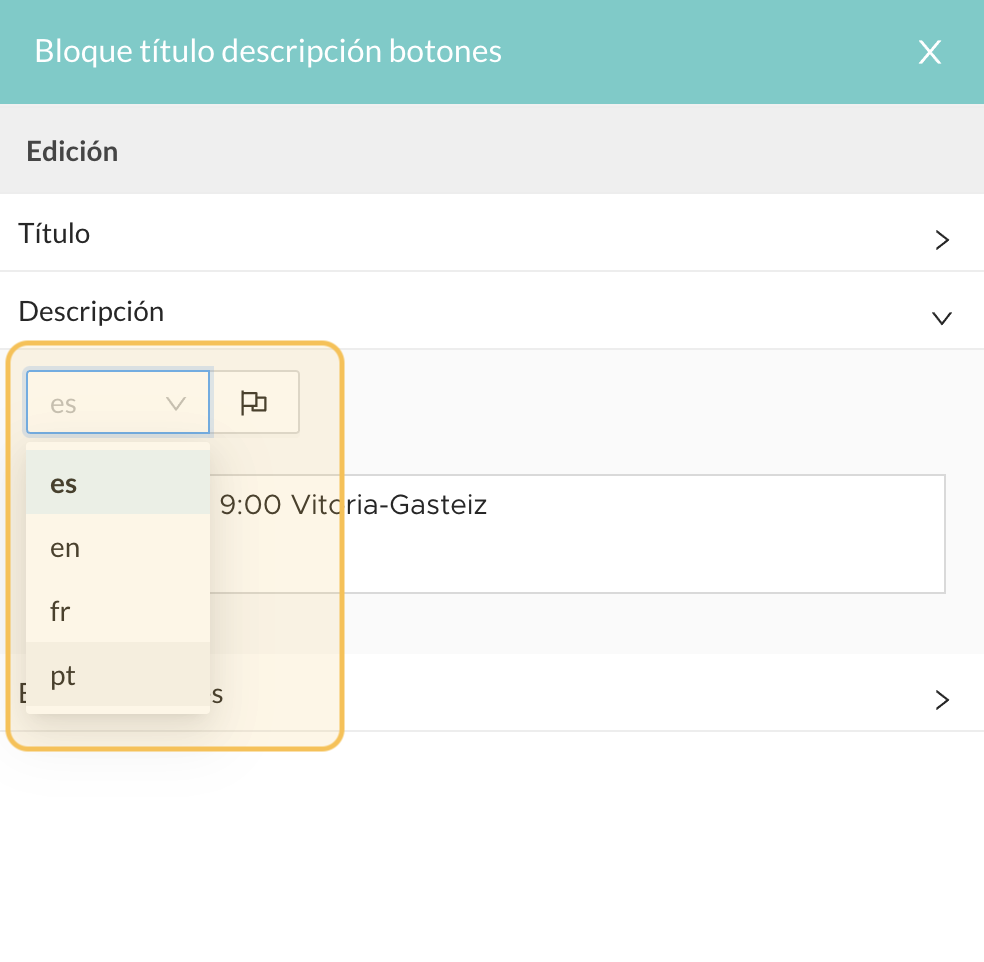
Important! If the event is available in multiple languages and you want to edit text, you must change the language from the selector in the top menu and make the changes for each one.
{% endhint %}
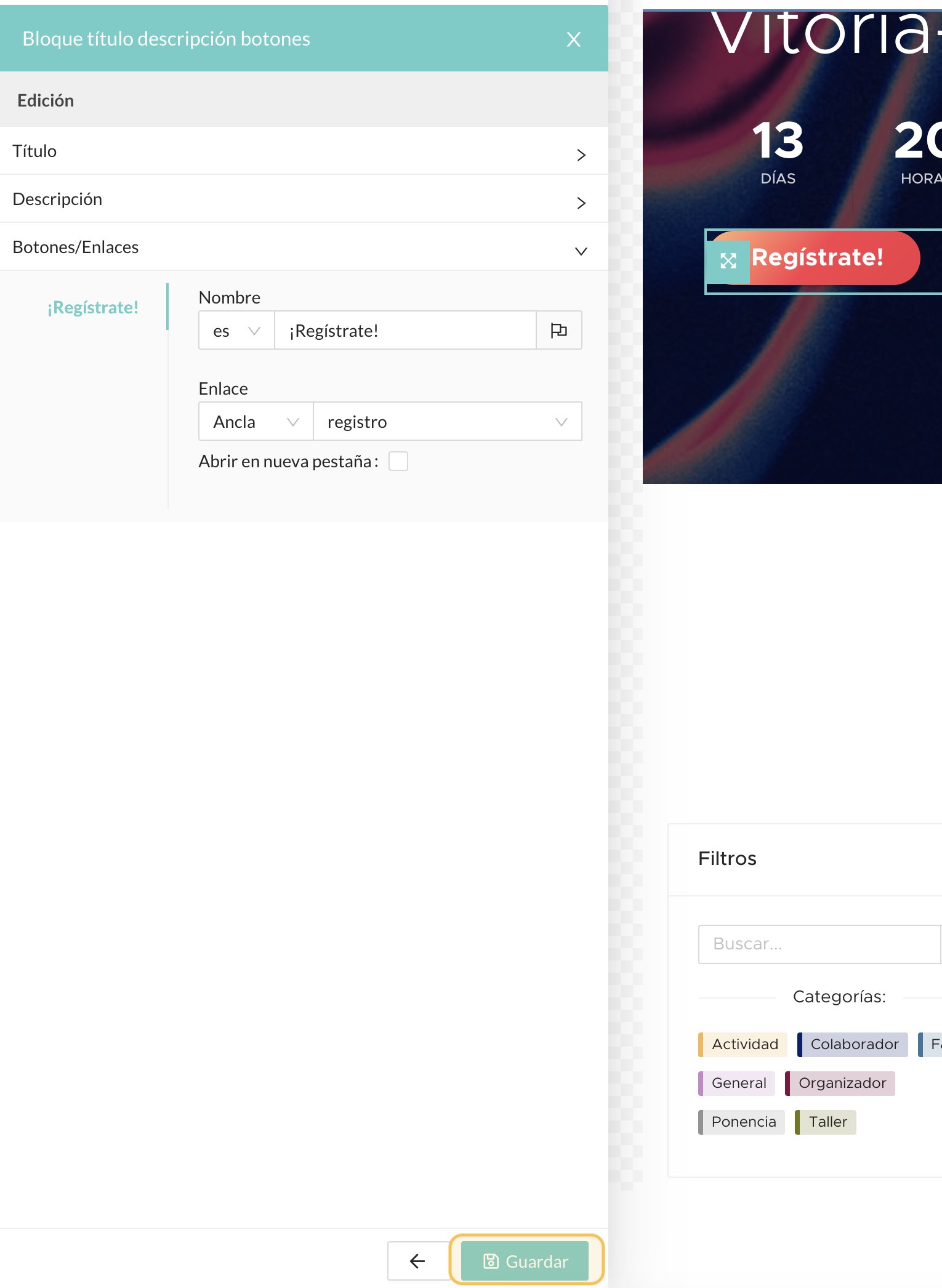
Always remember to **save your changes** using the save buttons:
### 6. Considerations regarding the edition
* The block and component structure is created by the Eventool team.
* From this panel, you can **edit the content**, but **you cannot add new blocks or components**.
* You can browse the website, select the block or component you wish to modify, and apply the available changes.
### 7. Switch editing page
From the top menu, you can change the page you are editing by clicking on the **Change** button:
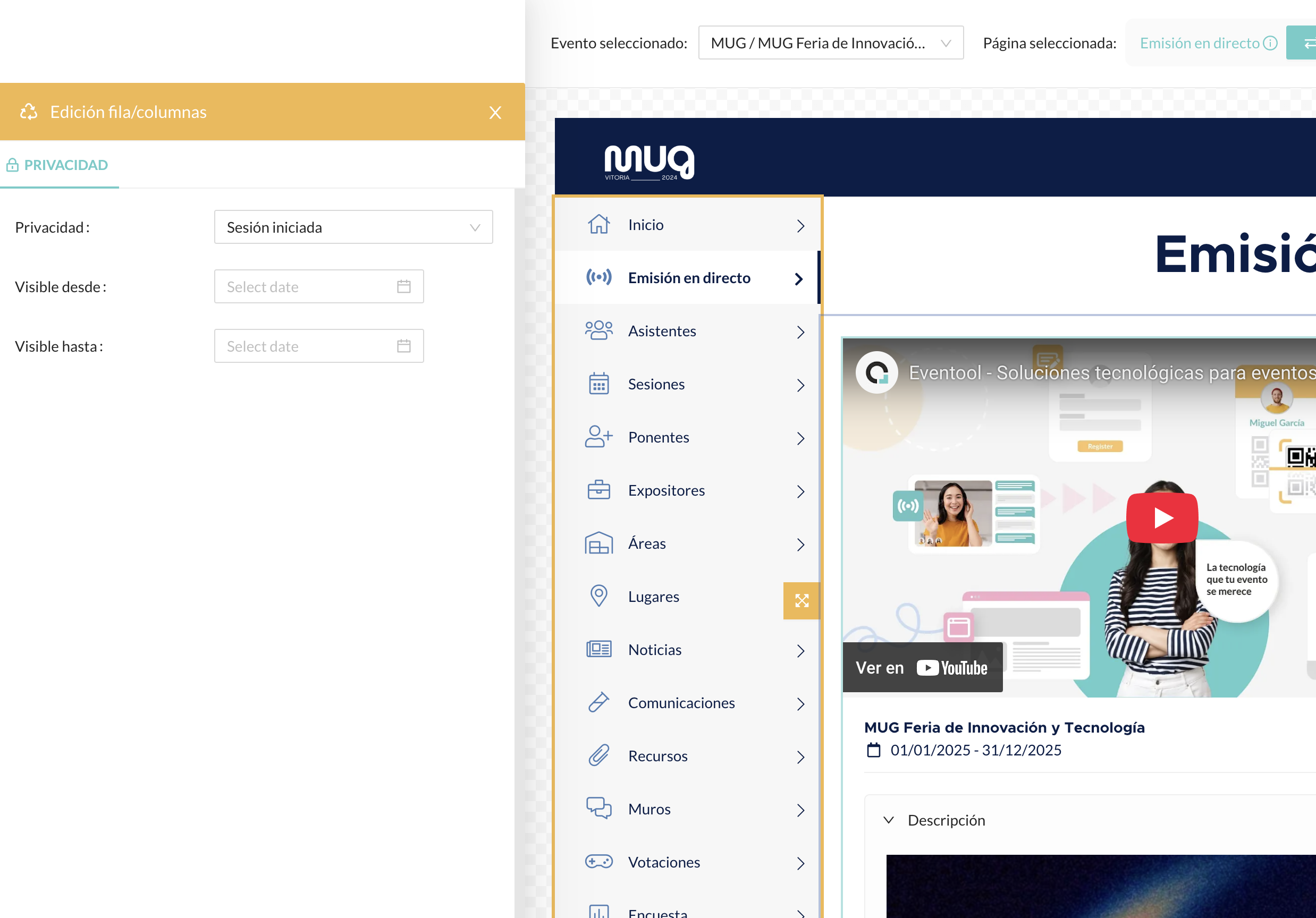
### 8. Yellow paintbrushes
In some cases, you may see **yellow** brushes. They work the same as navy blue ones, but indicate that these are blocks reused in multiple sections. They are common in virtual events, for example, in navigation menus.