> For the complete documentation index, see [llms.txt](https://help.eventool.com/llms.txt). Markdown versions of documentation pages are available by appending `.md` to page URLs; this page is available as [Markdown](https://help.eventool.com/en/dashboard/configuration/options-included.md).
# Options included
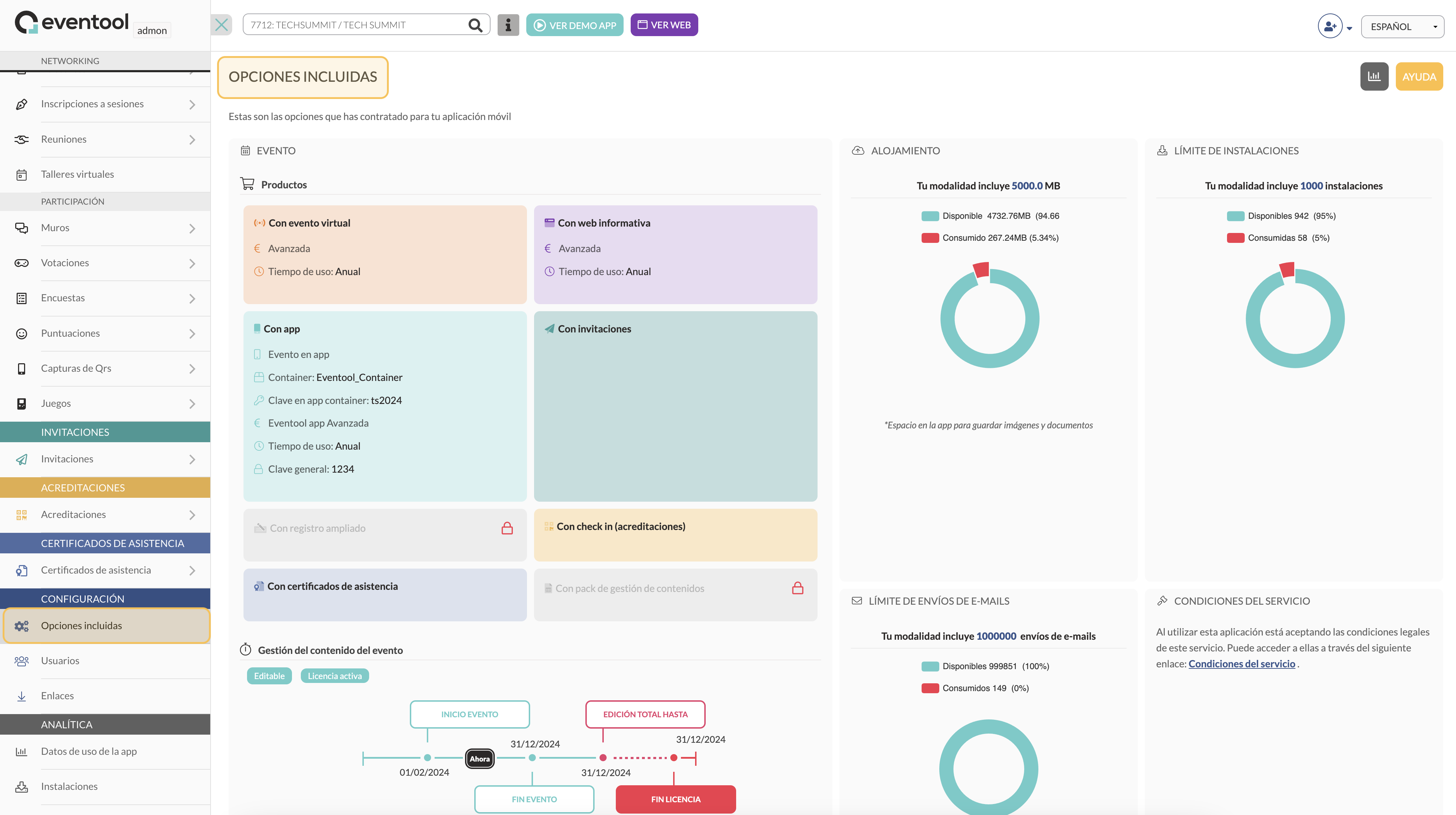
## Where can I view the products I have purchased and the options included in Eventool?**?**
In the Eventool Management Panel, you can see the products you have purchased and the options included in your plan in a clear and organised manner. Below, we explain how to access this section and what information you will find there.
### Access to included options
Within your event's administration panel, you will find a section called **Settings** in the left sidebar. Under this section, select **Included Options**. Here you will find a complete summary of the products and services contracted for your event.
### Contracted products
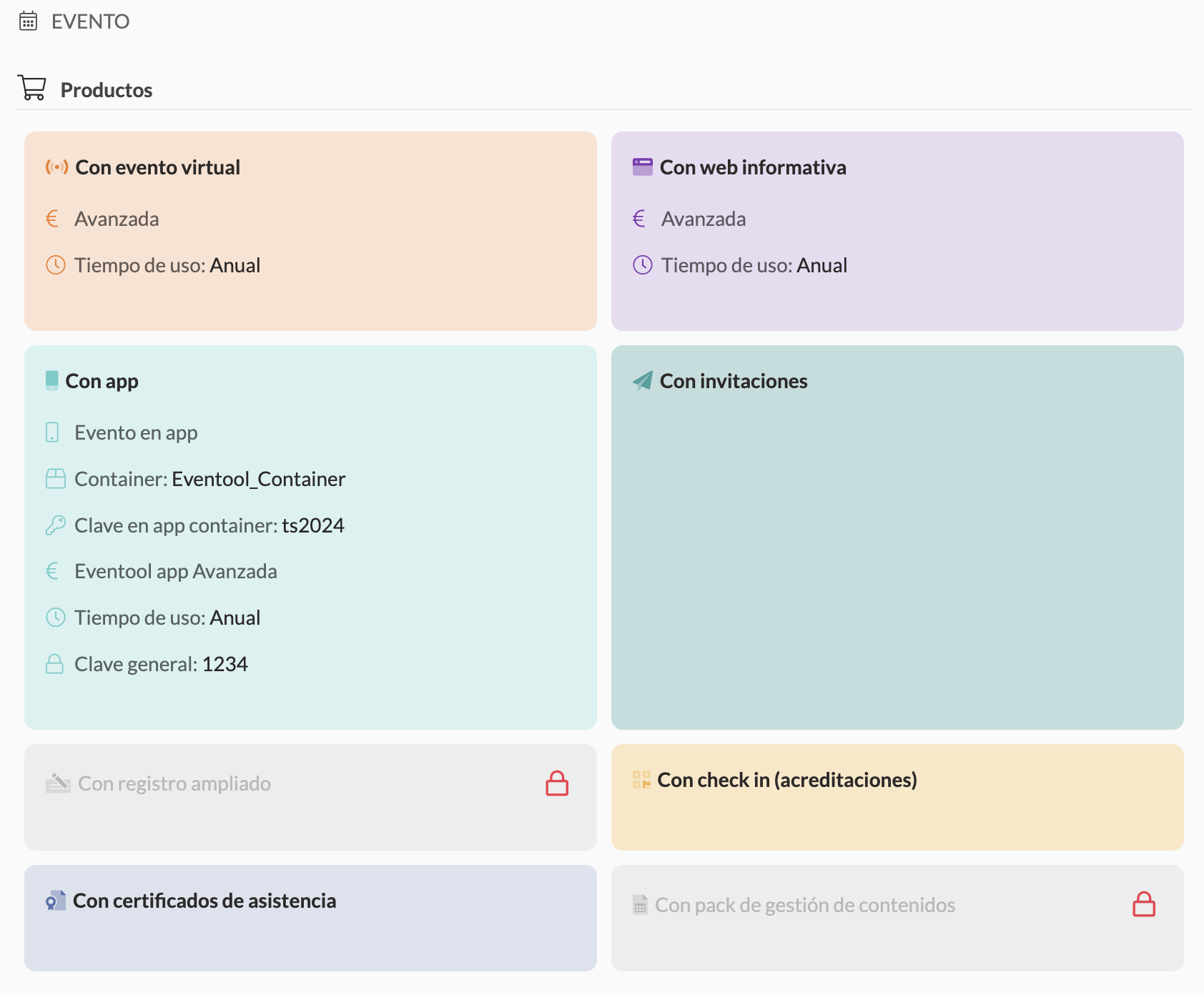
In the centre of the screen, you will see the different solutions you have activated for your event. These are grouped into categories, such as:
* **Virtual Event**: includes features for virtual events, such as live streaming and other related services.
* **Informative website**: indicates whether you have contracted a website for your event.
* **App**: if you have included a mobile application for attendees, this section will indicate the status of the app.
* **Invitations**: specify whether you have enabled features for sending invitations.
* **Registration**: if you have activated registration for the event, you can view it here.
* **Check-in and Accreditation**: indicate whether you can manage access to the event with accreditation and check-in.
* **Attendance certificates**: shows whether you can generate certificates for attendees.
* **With content management pack**: if you have contracted content management for your event, this option will be marked.
Each of these modules is accompanied by relevant information such as:
* **Type of solution**: for example, whether it is advanced or standard.
* **Configuration keys**: access codes, either for the event published on Eventool or for the information if it is a general key.
* **Time of use**: information on the duration of the contracted service (annual or temporary).
### Display of contracted limits
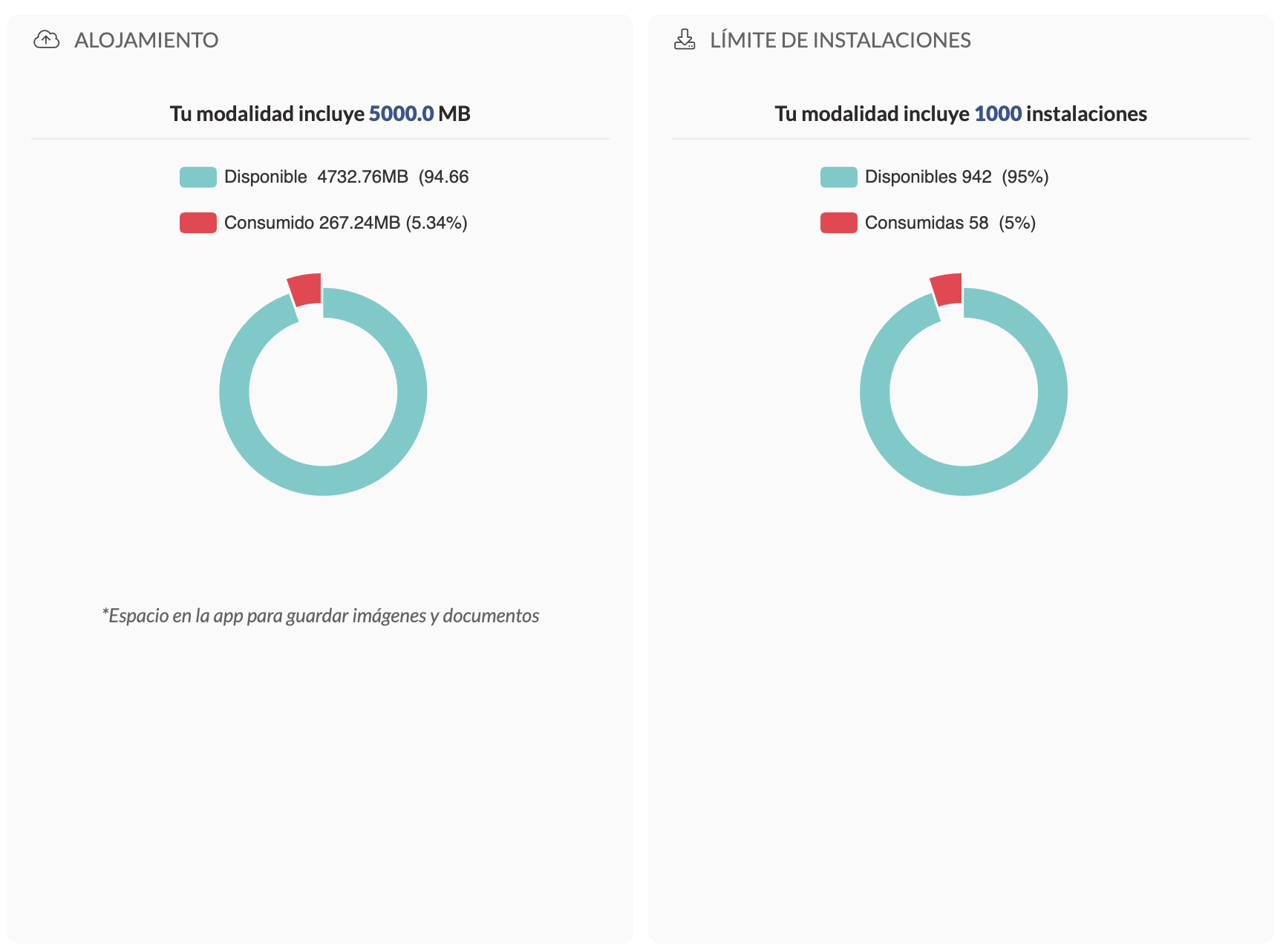
On the right-hand side of the screen, you can clearly see the usage limits for the services you have contracted:
* **Storage**: indicates the space in MB that you have available and the percentage already used.
* **Installations**: the maximum number of mobile app installations permitted and how many have been used so far.
* **Email sending**: maximum limit of emails available for your event and the percentage used.
### Additional settings
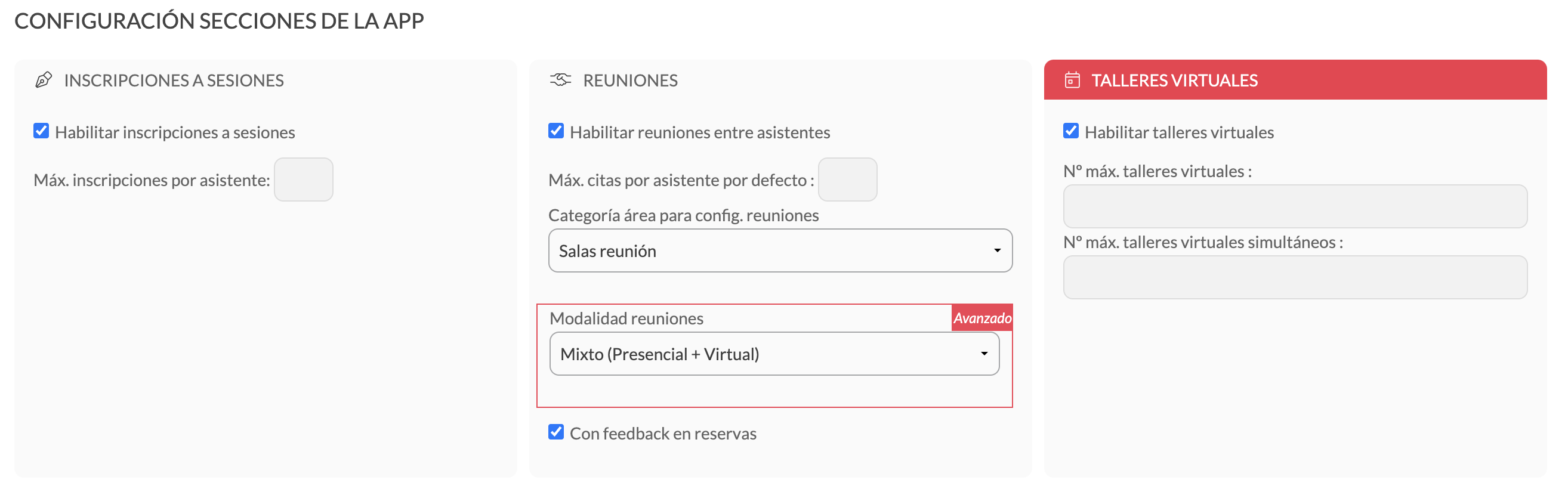
At the bottom, you can find additional settings such as the app **language**, **time zone**, and enable or disable different sections of the app, such as registrations for virtual sessions or workshops.
This section on **Included Options** allows you to have clear control over the services that are part of your plan and make adjustments according to what you need for your event.