> For the complete documentation index, see [llms.txt](https://help.eventool.com/llms.txt). Markdown versions of documentation pages are available by appending `.md` to page URLs; this page is available as [Markdown](https://help.eventool.com/en/app/access-to-the-app/how-do-i-enable-attendee-login.md).
# How do I enable attendee login?
You can enable the login option in the app so that attendees can access their profile and locked sections.
{% hint style="info" %}
This function is essential if you have set up attendee registration or imported users from the panel.
{% endhint %}
Below, we show you how to do it step by step.
### Step 1. Access the app's administration panel
1. Log in to the Eventool panel and select the event you want to manage.
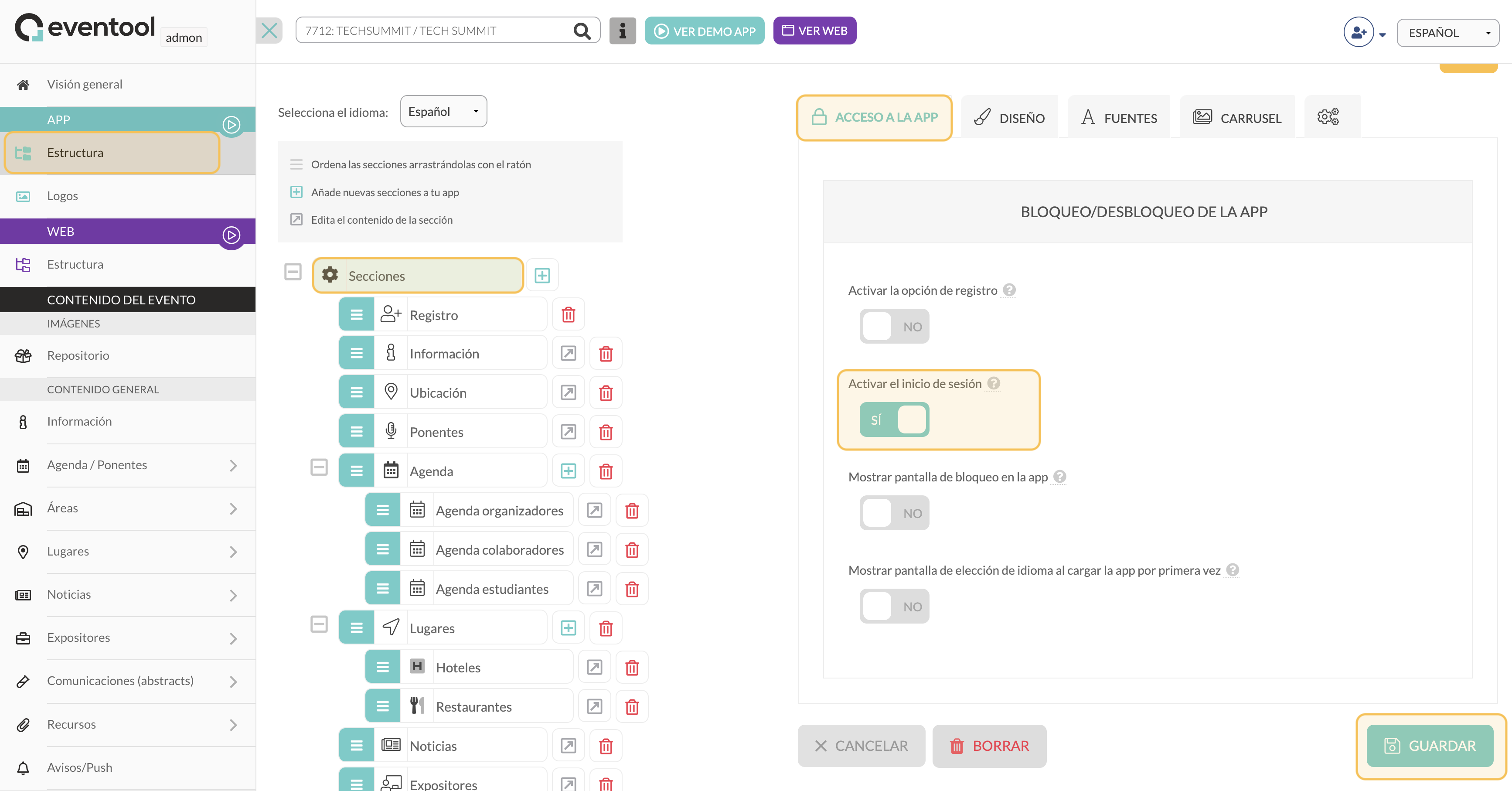
2. In the left side menu, go to the **APP > Structure** section.
### Step 2. Configure app access
1. Once inside the app settings, click on the **APP ACCESS** tab, located in the upper right corner.
2. In the **App's Lock/Unlock section**, locate the "**Activate login**" option.
3. Change the selector to the "**YES**" position to enable login.
### Step 3. Customize the additional options
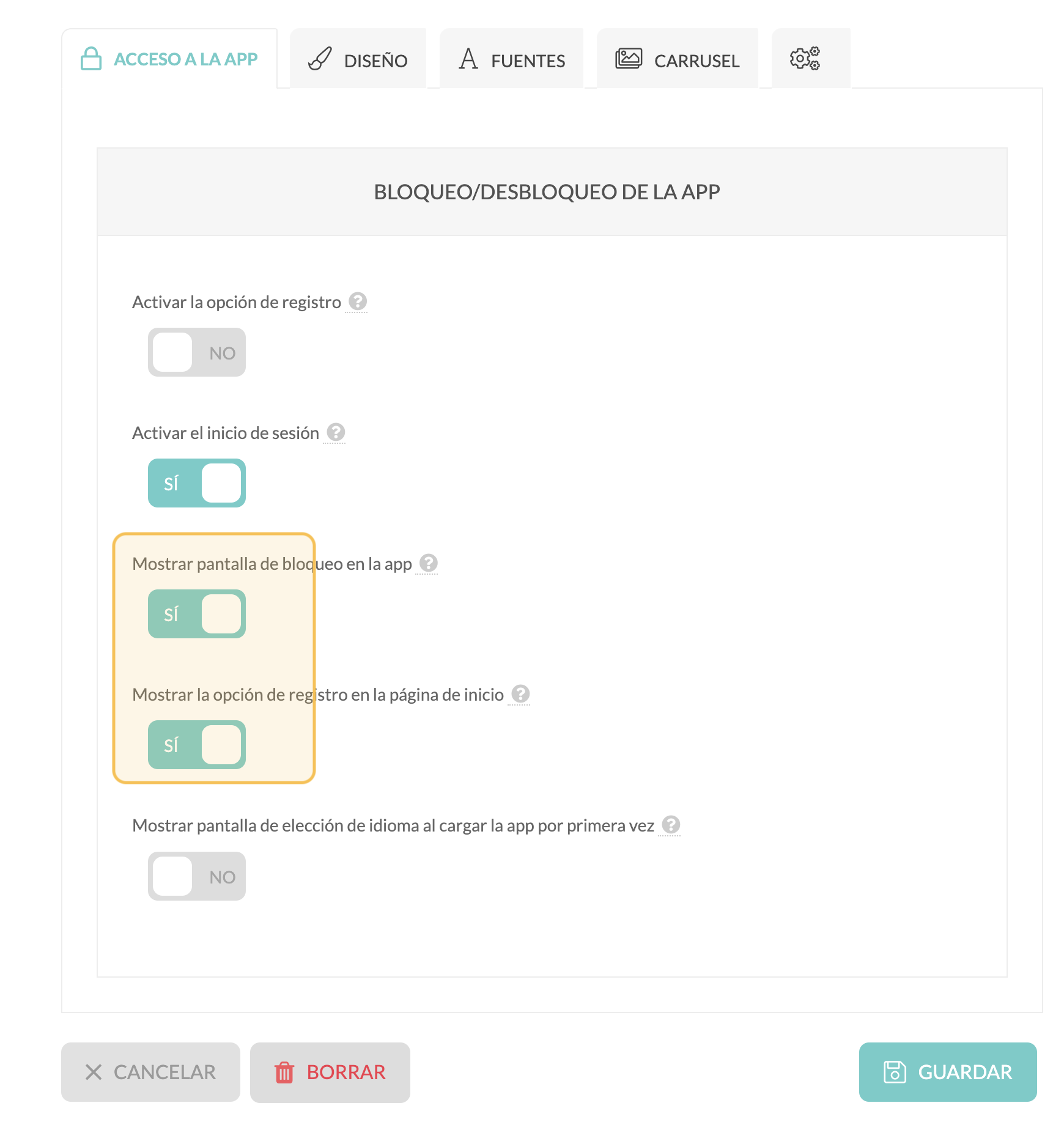
In the "**App Lock/Unlock**" section, you can configure how assistants access app content using the lock screen. This screen appears before granting access to the main content and can be configured in the following ways:
**Options available on the lock screen:**
1. **Log in with your email and personal password:**
* If you have activated the "**Login**" option, attendees will be able to unlock the app by entering their email and personal password.
* This option is useful when you have attendees pre-registered or imported from the panel, ensuring a personalized experience.
2. **Unlock using a general key:**
* If "**Login**" is disabled, access to the app is done by entering a general key that you can configure beforehand.
* This option is ideal for more open events or when you don't need to identify attendees individually..
3. **Enable logging from the lock screen:**
* If you select "**Show registration option on the home page**", users who are not yet registered will be able to create their account directly from the lock screen.
* This is useful for events with open registration, allowing attendees to easily register and access the content.
Click the **SAVE** button to apply the changes.
{% hint style="info" %}
**Show language selection screen**: If your event has an international audience, you can enable this option so users can select their language when opening the app for the first time.
{% endhint %}